
Creating cool photo collages has become easier than ever. In the past, you needed complicated computer programs, but nowadays, with the internet, you can do everything from your phone or browser. Whether it's to preserve memories of a trip, make a special invitation, or just post something different on social media, there are many online tools that help you combine your photos in a creative way. We've selected some of the best options for those who want to make photo collages without complications.
Main Highlights
- Use high-quality images to ensure your collages don't come out blurry or low-resolution.
- Adjust colors like brightness, contrast, and saturation to make your photos more vibrant and balanced.
- Choose legible fonts and text styles that complement your photos without overwhelming the visual appeal.
- Save your collages in appropriate formats (JPEG, PNG, PDF) for their intended use, whether online or for printing.
- Explore the different layouts and templates offered by the tools to find the style that best suits your photos and your idea.
Instasize Photo Editor + Video
Instasize is a very complete app for anyone who edits on their phone. It works for both iOS and Android, which is already a plus. The collage-making feature is super easy to use, and they even add some extra things like different borders, text editing, and even beauty tools, you know? If you like to make everything look perfect.
But it doesn't stop there. Instasize also lets you tweak the details of your photos: adjust exposure, brightness, color, shadows, highlights, contrast, sharpness, and saturation. That's quite a lot for those who want to go beyond the basics. And for those who don't have much time or patience to adjust everything manually, they have over 130 filters inspired by professional photographers. You're sure to find one that matches what you want. With Instasize, anyone can give a professional touch to the photos they post online.
Besides collages, the app is also good for editing videos, with easy-to-use tools and caption options. You can even add music. It's one of those apps that's useful for many things, you know? If you want to create a collage layout That's great, he'll help you.
Instasize is a powerful mobile editing tool that combines photo and video collages with advanced editing features and a vast library of filters. It stands out for its ease of use, even with so many features available.
The app has a free version that already offers quite a lot, but if you want everything, there's the option to subscribe to Premium for a monthly fee. They are always adding new tools, so the app stays up-to-date with what's trending.
Canvas
Canva is an online tool that has become super popular for anyone who wants to create any type of design, and making photo collages is one of them. You know, it's one of those tools that you open and immediately feel comfortable with, even if you've never used photo editing software before. The interface is very clean, and the number of available templates is astounding. You can find a little bit of everything, from simpler layouts to more elaborate options that already come with backgrounds and graphic elements.
One thing I really like is how easy it is to drag and drop elements. Want to change a photo? Just drag the new image on top of the old one. Want to add text? Click, type, and choose the font. And speaking of fonts, the variety is enormous, as are the icons, illustrations, and other stickers you can use to give your collages a special touch. It's one of those places where you can spend hours exploring the options without even realizing it.
For anyone who works with social media or has a business, Canva is a lifesaver. You can create collages for Instagram posts, Stories, Facebook covers, and so on. And the best part is that it already comes with the correct dimensions for each platform, so you don't have to worry about adjusting the size. If you're looking for inspiration for... interior design, Canva also has templates for that!
Canva stands out for its versatility, allowing users of all skill levels to easily create visually appealing designs, from simple collages to more complex marketing materials.
In addition to all that, Canva allows you to download your creations in various formats, such as JPG, PNG, and even PDF, which is great if you intend to print your collage or use it in other projects. And if you work in a team, the collaboration feature is a huge bonus, allowing multiple people to work on the same project simultaneously. It's truly a complete platform for anyone who wants to enhance their photos without complications.
PicCollage
PicCollage is a really cool tool for anyone who wants to create photo collages quickly and easily. You know when you take a bunch of photos and want to combine the best ones into one image? This app makes it seem like a piece of cake. It has a lot of ready-made templates, which are like predefined frames or layouts, and you just need to drag your photos into them. It's super intuitive, even if you don't have much experience with editing.
One thing I really like is the variety of things you can add. It's not just photos, you know? You can add text with different fonts, fun stickers that give it a special touch, and even change the background of your collage. They're always adding new things, so the collection of stickers and templates never gets old. It's great for creating something for a birthday party, to show off a day with friends, or even for something more themed, like Christmas or Easter.
PicCollage stands out for its simplicity and the number of decorative elements available.
If you want to personalize your collages even more, PicCollage offers a few options:
- Layouts: Choose from hundreds of pre-designed layouts or create your own arrangement.
- Text: Add captions or messages with a good variety of fonts and colors.
- Stickers: A huge library of stickers to add a fun or thematic touch.
- Funds: Change the color or use patterns for the background of your collage.
- Basic Edition: Adjust the brightness, contrast, and other basic settings of your photos directly in the app.
It's one of those tools that you open, put together your collage in a few minutes, and start using right away. Perfect for anyone who wants quick and beautiful results without having to learn a complicated program. It works well on both mobile phones and tablets, which is a lifesaver.
Adobe Express
Adobe Express is a free online tool that stands out for its ease of use, even for those without editing experience. It offers a wide range of ready-made templates for various occasions, from social media posts to more elaborate presentations. It's a great option for those seeking quick results with a professional look without complications.
One of the great advantages of Adobe Express is its intuitive interface. You don't need to be a graphic designer to create amazing collages. The platform allows you to combine photos, add text and graphic elements in a very straightforward way. Furthermore, it integrates with other Adobe products, which can be a differentiating factor for those already using the brand's ecosystem.
Ease of use
Wide variety of models
Integration with other Adobe products
Option to save in high resolution
Although it's a free and very accessible tool, some users report that the final image quality may not be as high as with more advanced software. However, for most everyday needs and for those who want speed, Adobe Express fulfills its role very well. It's an excellent gateway to the world of digital collage creation.
For those who want to quickly add a special touch to their photos, the Adobe Express Photos It's a smart choice.
BeFunky Collage Maker
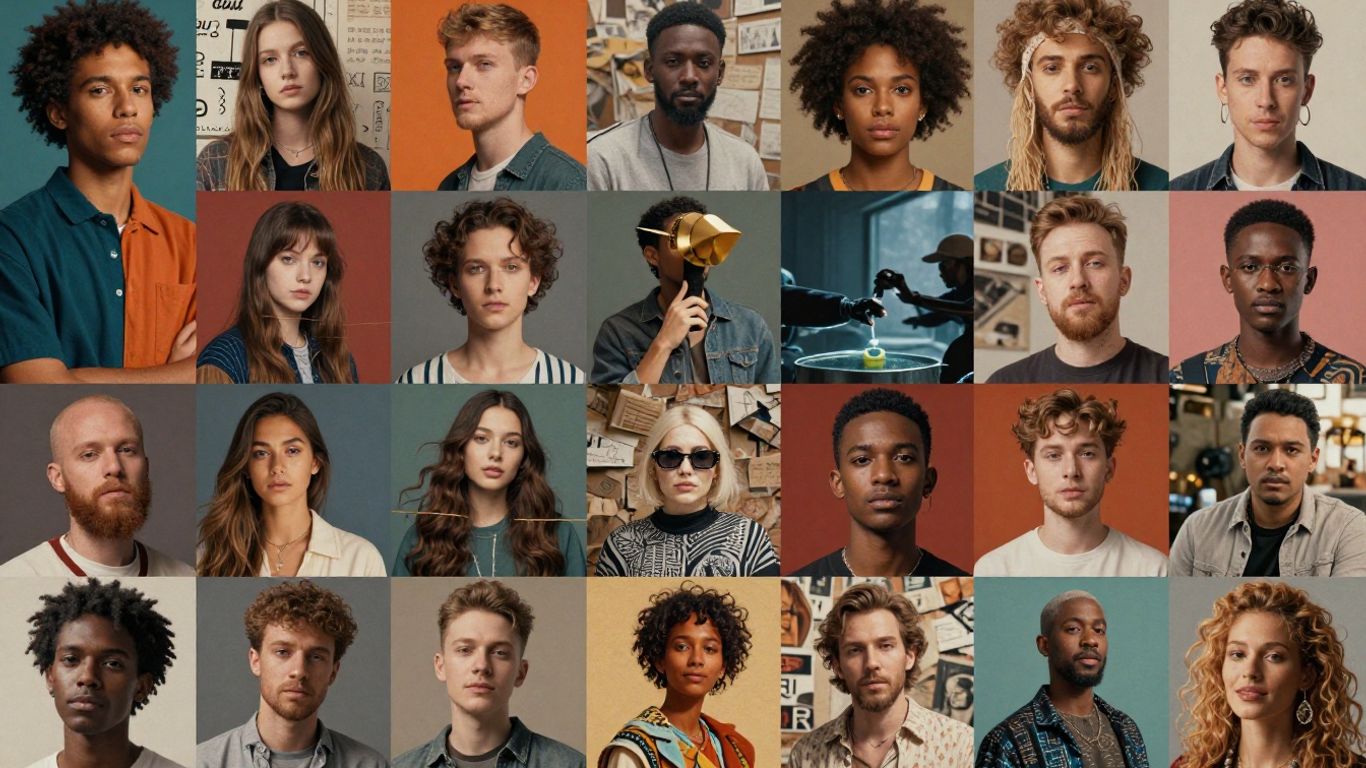
BeFunky is an online tool that makes creating photo collages very accessible, even for beginners. It offers a very straightforward interface, which is great because you don't waste time trying to figure out where things are. One of the cool things is that it has a variety of ready-made templates, so if you don't know where to start, you already have a starting point. And the best part is that you can import your photos from various places, such as Google Drive, Dropbox, or Facebook, which makes it much easier to put everything together.
One feature I find really useful is the ability to experiment with different layouts without having to constantly reload photos. If you're feeling adventurous, BeFunky can even automatically create a collage for you, which is a fun surprise. Once everything is ready, sharing on social media is a breeze; usually, you can send it to Facebook or Twitter with just one click.
Positive points:
- User-friendly interface.
- Wide variety of models.
- Allows you to import photos from cloud services.
- Editing and customization options.
Points to consider:
- The free version has some limitations.
- It does not offer advanced photo editing features.
- It can be a bit slow with large files.
- It has no offline functionality.
BeFunky stands out as an accessible online option, ideal for those looking to create collages quickly and easily. Its integration with cloud storage services and variety of templates make it a practical choice for everyday projects, including creating YouTube thumbnails.
MOLDIV
MOLDIV stands out as a complete app for those seeking a professional photo editing experience without the hassle. It offers an impressive range of tools, making it an end-to-end solution for your photography needs. Whether you're creating collages for Instagram or your blog, MOLDIV has what you need.
This app is a true Swiss Army knife for photo editing. It not only functions as a robust collage maker, but also includes a built-in camera and a vast collection of filters. For those who feel a little lost with layouts, MOLDIV guides you in creating elegant designs, even without prior experience. The best part is that collage editing is non-destructive, so you can experiment freely without fear of losing your work.
MOLDIV offers:
- Over 300 layouts to choose from.
- Hundreds of fonts, patterns, and stickers to personalize your creations.
- Editing tools ranging from basic adjustments to more elaborate effects.
- High-quality export options for your projects.
With so many customization options, including over 250 fonts, hundreds of patterns, and a variety of stamps and speech bubbles, MOLDIV ensures your collages are unique and reflect your personal style. It's a powerful tool for anyone who wants to add a special touch to their photos, available for both iOS and Android. Explore the editing possibilities in MOLDIV™.
Although most features are free, some more advanced features may require an in-app purchase. However, the free package is already quite generous for most users who want to create aesthetic and impactful collages.
Pic Stitch
If you enjoy apps that let you add watermarks, text, and doodles to your photos, Pic Stitch might be a good choice. It also offers a wide variety of layouts, more than 200 options to be exact, so you're very likely to find one you like. The cool thing is that it even has training instructions, which helps beginners get the hang of making collages quickly.
One thing that sets Pic Stitch apart is the ability to add videos to your collages, and not only that, it has some cool options for editing these videos, such as adding music and trimming.
Main features:
- Over 200 collage layouts.
- Option to add text and stickers.
- It allows you to add and edit videos.
- User-friendly interface.
Pic Stitch is a tool that combines simplicity for beginners with enough options for those who want a little more control over their collages, especially if you like to mix photos and videos.
PhotoGrid
PhotoGrid is one of those apps that lets you create photo collages in a fun and uncomplicated way. You know when you have a bunch of cool photos and you want to put them all in one place? PhotoGrid does that quickly.
It comes with a bunch of templates, which are basically the outlines of how your photos will appear in the collage. There are simple layouts with just a few photos, and more elaborate ones where you can put several at once. The good part is that you can adjust the borders, change their shape, and customize everything to your liking. It's very straightforward: choose the layout, add your photos, and that's it, your collage is done. You can use it on both Android and iPhone.
PhotoGrid stands out for its versatility and ease of use, making it a great option for those who want quick results with a touch of creativity.
Here are some things you can do with PhotoGrid:
- Choose from hundreds of grid layouts.
- Add text using different fonts and colors.
- Adding stickers will give it a special touch.
- Apply filters to photos to make them more beautiful.
- Adjust the size and shape of the borders between the photos.
Although the free version offers quite a lot, it's good to know that some extra features or the removal of the watermark may require a purchase. But, for most people who just want to make cool collages for social media or to keep as souvenirs, what's available for free is already enough.
Photo Collage Maker
Fotor is an online tool that started as a web application, but today it's available for download on both the Apple Store and Google Play. It offers a very complete photo editor, and the best part: it's free! You can even edit RAW files, which is great for those who take editing seriously. If you decide to invest a little, Fotor opens up a range of options for those who like to create collages, with many templates, backgrounds, and design ideas to personalize your creations.
One cool thing about Fotor is the 'Fotor Events', which are weekly photo design contests. Who knows, you might win a prize?
- Various models: Fotor has a huge number of ready-to-use templates.
- Photo editing: In addition to collages, you can edit your photos with various tools.
- Competitions: Participate in challenges and show off your talent.
Fotor is an interesting option for those seeking a photo editor with good features and an integrated collage maker. It stands out for its versatility, allowing everything from basic edits to more elaborate projects, and the possibility of participating in contests adds a fun and competitive element to the platform. For those who want to delve deeper into its capabilities, there's a guide that teaches you how to use Fotor for professional photo editing, covering essential features such as AI tools and design tips for creating incredible visuals using Fotor for professional editing.
While the free version is quite functional, some more advanced collage editing and customization options may require a paid subscription. Even so, for most users, Fotor offers a robust package for creating amazing photo collages without spending a penny.
PiZap
If you're looking for a photo collage tool that's more about fun and less about seriousness, PiZap might be the one for you. It comes with a ton of stickers, doodles, and frames that give your creations a kind of "Japanese" feel, you know? It's the kind of app that lets you unleash your creativity without much complication.
PiZap is great for beginners who want to experiment. It has hundreds of border, frame, and background image options for you to play around with. The interface is very easy to use, which is a plus, especially if you don't have much editing experience.
However, if you're looking for more in-depth and professional photo editing, PiZap might not be the best choice. It shines most when it comes to decorating and personalizing collages in a fun and quick way.
Strengths of PiZap:
- Super user-friendly interface, ideal for beginners.
- A wide variety of stickers, doodles, and frames to add a unique touch.
- It allows you to easily add text to your collages.
- Quick sharing options for social networks.
PiZap is the kind of tool that reminds you that making collages can be a light and relaxed activity. It doesn't try to be a professional photo editor, and that's where it stands out, offering an experience more focused on fun and creative expression without stress.
Ribbet
Ribbet is an app you can find for iOS, and honestly, a lot of people speak highly of it. It's one of those apps that works for both beginners and experienced photo editors. Its editing tools are very comprehensive, with a bunch of filters to play with and customize your photos exactly how you want them.
The cool thing is that it comes with over 100 different fonts. You know, so you don't always use the same ones and can add a special touch to your creations. If you get the paid version, you get access to even more features, like darkroom tools that let you do more detailed edits right on your phone.
Main features of Ribbet:
- Hundreds of fonts to choose from.
- Variety of filters and backgrounds.
- Advanced editing tools in the Pro version.
- It does not leave a watermark on exported collages (in the paid version).
While the free version offers quite a lot, the paid version of Ribbet truly opens up a wider range of creative possibilities, especially for those seeking finer control over editing photos within the collage.
Diptic
If you enjoy mixing photos and videos into a single image, Diptic might be a good option. It's an app that lets you create really interesting collages, with various templates, frames, and fonts. There are over 190 layouts to choose from, a bunch of cool fonts, and you can export in high resolution. It also comes with 14 different filters.
One cool thing is that you can switch between videos and photos within the frames. This makes it much easier to combine video clips and even add music. The interface is very simple, using those familiar pinch-to-zoom gestures, so it's easy for anyone to use, regardless of age or tech skills.
Diptic is especially good for iPhone users.
- Over 190 layout options.
- A wide variety of sources are available.
- It allows you to mix photos and videos in the same collage.
- High-resolution export.
Diptic charges for the app and for additional layout packs, but most basic functions are already included and work well for creating cool collages without spending much.
Photovisi
If you're looking for a quick and easy way to put together some photos without worrying too much about complex editing, Photovisi might be a good option. It works directly in your browser, which is very practical, and offers a variety of ready-to-use templates. It's the kind of tool you use when you want something nice to send to family or to print a calendar, you know?
One thing I noticed is that it doesn't have many options for editing the photos themselves. If you want to adjust brightness, contrast, or apply filters directly to the images before placing them in the collage, you might need to do that elsewhere first. Photovisi focuses more on the assembly and overall design of the collage.
For those who want to use the designs without the watermark, a paid subscription is required. However, for those who just want to play around and create something cool to share, the free version already delivers good results. It's a simple option for those who don't want complications and are looking for beautiful templates for their creations.
Photovisi stands out for its simplicity and the number of layouts available, making it ideal for those seeking quick and visually appealing results without needing advanced editing skills.
It's great for creating cards, banners, or even invitations. If you like seeing your photos transformed into something more, like a printed calendar, Photovisi can help you take that step. It's a cool way to give a new use to those travel photos or photos from special events. For those interested in different forms of photo art, it's worth taking a look at how... artists use diverse materials to create unique collages.
PicMonkey
If you're looking for an online tool that's good for creating collages but also offers a lot of other editing options, PicMonkey might be a good choice. It works directly in your browser, which is convenient, and has an interface that isn't too complicated to get the hang of. You can choose between grids to organize your photos or go for the free style, which gives you more freedom to position everything as you like.
PicMonkey comes with over 50 different effects, from the most basic to more artistic ones, like painting. You can have a lot of fun with filters and add text to give your collages a special touch. They also have a team plan that can be interesting if you work with other people or with social media, as it includes management and collaboration features.
One cool thing is that they offer a one-week free trial. This way, you can calmly try everything out before deciding if it's worth subscribing. It's a good way to see if the tools fit your way of working.
PicMonkey is a versatile option for those who want more than just combining photos. It has options for those who want to edit the images individually before assembling the collage, which is a plus. If you like having control over the details and want a place to do various things with your photos, it's worth checking out.
Google Photos
Google Photos is a tool that many people already use to store their digital memories, and what not everyone knows is that it can also be used to create photo collages in a very simple way. Don't expect hundreds of customization options here, because its focus is different: organizing and storing your photos. But, for those who want to quickly put together some photos without complication, it works.
It offers about six different layouts for you to choose from. That's enough to put together about 4 to 6 photos, depending on the template. The big advantage is that if you already use Google Photos to store your images, everything is already there, ready to use. The photo search within the app is really good, which makes it easy to find the images you want to use in your collage.
It's a straightforward option for those seeking convenience and who are already part of the Google ecosystem.
Positive and negative points
- Pros: Super easy-to-use interface, integration with photo storage, efficient search.
- Cons: Very few layout templates, very limited editing options, not ideal for those who want to create more elaborate collages or with many effects.
If you need something quick and straightforward to combine some photos, Google Photos might be the solution. But if the idea is to have complete control over the design, it might be better to look at other options.
Pic Jointer
You know when you want to put some photos together, but don't want any complications? Pic Jointer is like that friend who solves everything quickly. It's very straightforward, you know? You choose your photos and it gives you a bunch of cool ways to arrange everything into a single collage. There are over 200 different layouts, so you can vary it a lot.
The cool thing is that it's not just for putting photos together; you can add your own personal touch. There are nice fonts for text, colorful backgrounds for added charm, and even stickers to make it more fun. You can combine up to 9 photos in a single collage, which is plenty to create something really complete.
One important thing to know is that it's only designed for iPhone users. So, if you're on Android or want to use it on a computer, you'll have to look for another option. But for those on iPhones who want to make collages without much hassle, Pic Jointer is a lifesaver.
Pic Jointer is a simple and effective tool for those looking to quickly create collages, focusing on joining images with basic customization options. It's a good choice for iPhone users who prefer practicality.
- Over 200 layouts to choose from.
- Options text, backgrounds and stickers For customization.
- Allows you to join up to 9 photos in a single collage.
- Exclusive for users of iPhone.
PhotoCollage
If you're looking for a simple and straightforward way to combine your favorite photos, PhotoCollage might be a good choice. It doesn't come with a lot of frills, but it efficiently does the job of creating basic collages. It's the kind of tool you use when you want something quick, without having to think too much.
The app offers a variety of layouts for you to choose from, which is great for beginners. You can drag and drop your photos into the designated spaces and then make some adjustments. It's a solid option for those who are starting out in the world of photo collages.
Some of the things you can do include:
- Choose between different grids and layouts.
- Add your photos from your phone's gallery.
- Make minor adjustments to the edges and background.
Although it doesn't have all the advanced tools you find in other editors, PhotoCollage stands out for its simplicity. If you need a collage for a quick social media post or just to share with friends, it works well. For those looking for something more elaborate, it may be necessary to explore other options, but for the basics, it does the job. You can find similar tools for creating collages online, such as those offered by [website name - missing from original text]. Pippit.
The interface is very clean, which makes life easier for those who don't have much experience with editing. You won't get lost in complicated menus. Just open it, choose the layout, add the photos, and you're done.
PicPlayPost
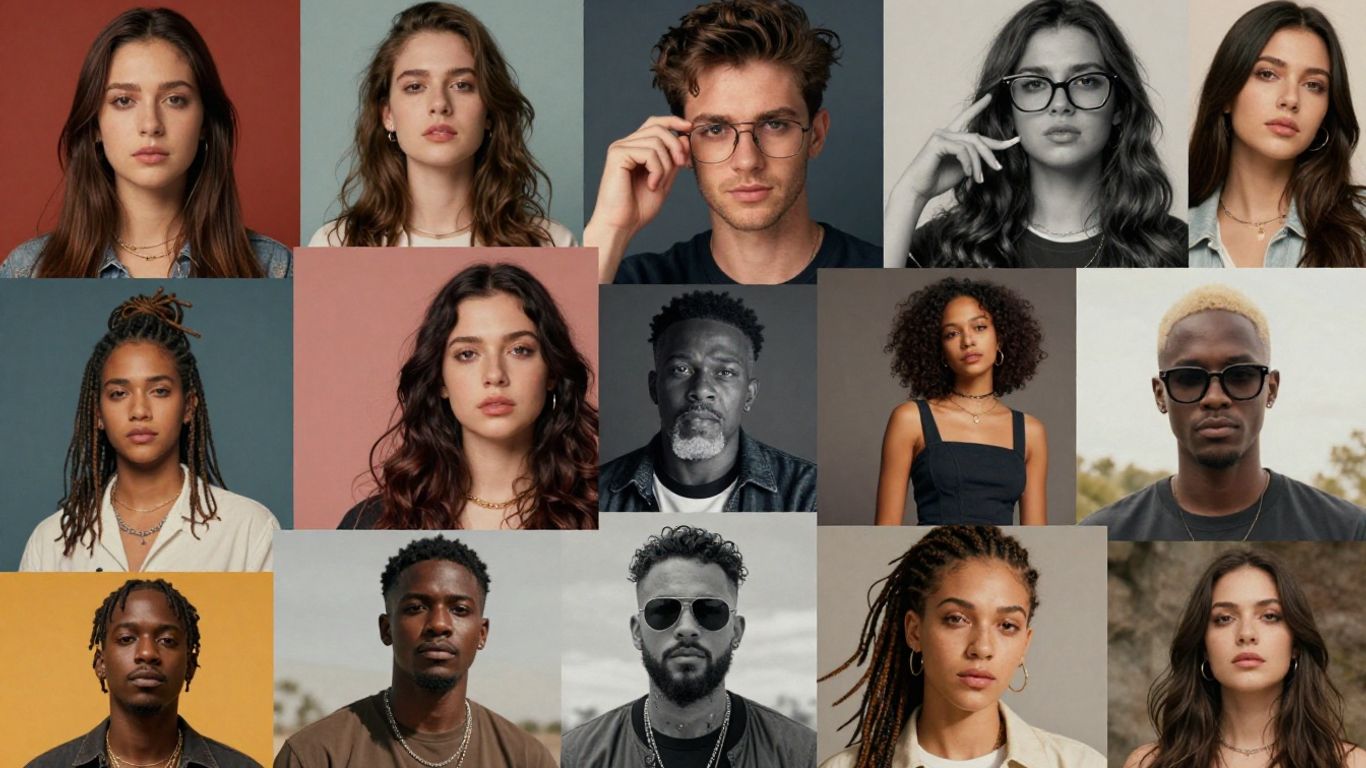
You know when you want to tell a story, but a single photo doesn't seem enough? PicPlayPost comes into play for those who want to go beyond static collages. It's especially cool because it allows you to mix videos and photos, creating something much more dynamic for your social media. Think about showing a before and after, a short tutorial, or simply several moments from an event, all together.
The app offers a good variety of layouts for you to organize your videos and photos. You can adjust the size of each frame and even use simple gestures, like zooming with your fingers, to customize everything to your liking. It's a different way to present your content, you know? You can even add music to give it a special touch before sharing.
If you enjoy creating eye-catching content for stories or posts, PicPlayPost is a tool worth trying. It makes it easy to combine different media, giving your creations a more professional and creative look.
Main features:
- Combines photos and videos into a single collage.
- It offers several customizable layouts.
- Allows you to add background music.
- Easy integration with social media networks such as Instagram, Facebook, and YouTube.
- Intuitive gesture-based controls.
PicsArt Photo Editor & Collage
PicsArt is a very complete app for those who like to edit photos and create collages. It's not just an editor, but also a platform where you can share your creations with a very active community. You know when you want to do something different, like a sticker or drawing battle with friends? PicsArt allows that, with options for up to 50 people to participate.
The great thing is that it always has new ideas, with themed contests that give your creativity a boost. It's one of those apps that leaves you with a smile on your face while you use it.
PicsArt stands out for being more than just a simple editor; it functions as a social network for visual creators, encouraging interaction and healthy competition through challenges and sharing.
It's available for both iOS and Android, which is great because most people use one of those systems. The interface might seem a little cluttered at first, but you'll soon get the hang of it. It's a tool that truly inspires you to create new and fun things with your photos.
Fuzel Collage
Fuzel Collage is an app that stands out for its user-friendly interface and wide range of creative options. It allows you to create collages with an unlimited number of photos, which is great if you have many images to combine. You can add music to your creations, giving them a special touch, especially if you're sharing them on social media. It also has a built-in camera, making it easy to take photos and add them to the collage without leaving the app.
One of the cool things about Fuzel is the flexibility to customize every element of your collage. You can play around with different layouts, add stickers and text to personalize everything. It has already won some awards, which shows that it is a well-regarded tool.
Some of the advantages of Fuzel include:
- A wide selection of ready-made templates and layouts.
- The ability to add music to liven up your collages.
- Integrated camera features to streamline creation.
- Integration with social networks such as Facebook and Instagram.
However, it's good to know that the free version has some limitations and may experience occasional delays when applying edits. To access all features, in-app purchases may be necessary. Even so, for those looking for a fun and feature-rich tool for creating collages, Fuzel is an interesting choice.
If you need precise control over the dimensions of your collage, Fuzel can be a good option, allowing you to create collages with the exact dimensions you want.
It's especially good for those who want to make collages for Facebook, but it works well for other platforms as well. The ability to add music and the flexibility in layouts make it a versatile tool for anyone who likes to express their creativity with photos.
Layout from Instagram
Created by the same developers as Instagram, Layout is a straightforward and easy-to-use tool for anyone who wants to quickly create collages. It was designed to be an extension of Instagram itself, making life easier for those who already use the platform to share their photos. The great advantage of Layout is its simplicity.
You can drag and drop your photos into the predefined layouts and then adjust the zoom with a simple pinch gesture. It's very intuitive, you know? There's not much complication.
The main focus is on the layouts., And that's where it shines. You'll find a good variety of options for organizing your images creatively.
However, because it's so focused on layouts, Layout from Instagram falls short in the photo editing department. The tools are quite basic, so if you're looking for more elaborate effects or fine-tuning, you might need another app.
Strengths:
- Extremely easy to use, ideal for beginners.
- Seamless integration with Instagram.
- It does not add a watermark.
- Options for customizing layouts and borders.
Weaknesses:
- Limited image editing tools.
- It may not be ideal for those who need advanced features.
- Sometimes it can take a while to load or save collages.
If you're looking for a quick and no-frills way to put together some photos to post on Instagram, Layout is a sure bet. It does the basics very well, without overwhelming you with too many options.
Pix
Pix is a tool that stands out for its simplicity and focus on creating quick and straightforward collages. If you don't want to waste time with many editing options and prefer something more practical for combining your photos, it can be a good choice. It doesn't have as many advanced features as other editors, but for those seeking speed, it's a great option.
The main advantage of Pix is its clean and intuitive interface. You can create a collage in just a few minutes, without any hassle. It's ideal for anyone who uses a cell phone and wants to quickly share something on social media.
It offers some basic layout and adjustment options, but its real strength is the speed with which you can achieve the final result. Think of it as a shortcut to getting your photos together in a cool way.
Ease of use The name of the game here is Pix. Don't expect deep editing tools or amazing effects, but rather a straightforward way to organize your visual memories. It's one of those apps you open, do what you need, and that's it. For those with little time or who don't want to delve into complex software, Pix does its job well. If you're looking for something more robust, you might need to look at other options, but for the basics and quick tasks, it works. For those who want to explore more design options, you can take a look at... Picsart Photo Editor & Collage which offers a wider range of tools.
InkXE Collage Maker
InkXE Collage Maker is an online tool that stands out for its simplicity and focus on creating collages quickly. If you don't like getting lost in many options and just want to put together your collage without complications, it might be a good choice. Basically, you choose up to eight photos, select a grid layout, and InkXE does the rest. It offers several different shapes and layouts, such as stars and mosaics, which deviate from the standard square pattern. After creating the base collage, you can add some finishing touches, such as text and stickers.
One cool thing is that it allows you to customize the size of the shapes, which can give your creations a more unique touch. However, it's good to know that the free version has its limitations and may display some pop-up ads. It also has social media integration, making sharing easier.
InkXE is more than just a collage maker; it's part of a larger platform focused on product design. This means it's geared towards those who want to use collages in designs for t-shirts and other items, which can be a differentiating factor depending on your goal.
Although it doesn't have as many advanced features as other editors, this lack of complication is precisely what attracts many users. It's a straightforward option for those seeking speed and who don't want to worry about complex configurations. It's worth trying if you need something fast and with a slightly different look.
Photo Mixer and Shape Collage Maker
If you're looking for a quick and straightforward way to put your photos together, Photo Mixer and Shape Collage Maker might be a good option. It doesn't delve into a lot of complicated tools, which, to be honest, can be a relief for many people. The idea here is simple: you choose your photos, select a grid layout – and it has some pretty different options, like stars or mosaics – and that's it, the collage is done.
The main focus is on simplicity and creating collages with unique shapes.
Sure, don't expect a super-complete photo editor here. The editing tools are basic, but sufficient to add a finishing touch. You can add text and some stickers to give your creation a little more life. It's the kind of tool you use when you want something ready quickly, without much hassle. Sometimes, less is more, right?
Points to consider:
- Variety of Layouts: It offers grid options and shapes that are out of the ordinary.
- Basic Edition: Allows you to add text and stickers for customization.
- Simplicity: Ideal for those who don't want to get lost in too many options.
It's important to note that, being more straightforward, it may have occasional glitches, and the free version usually comes with a lot of ads. But, if the goal is simply to merge photos in different formats, it delivers on its promise.
CapCut
CapCut, primarily known as a video editor, also proves to be a surprisingly capable tool for creating photo collages, especially in its desktop version. It offers a straightforward approach for those who want to combine multiple images into an attractive layout without excessive complication. If you already use CapCut for videos, you'll feel right at home with its interface.
To begin your collage, the process is quite simple:
- Upload your photos: Open CapCut, go to the image editing section and click "New Image". Use the "Upload" option to bring your photos into the program.
- Assemble the collage: Navigate to the "Collage" tab and choose one of the available layouts. Then simply drag and drop your images into the designated areas. You can adjust each photo individually, apply filters, or use "AI color correction" to add a special touch.
- Save your creation: When you're satisfied, click "Download all" in the upper right corner. You can save the image to your device or copy it as a PNG. There are also options to share it directly on social media.
One of the great things about CapCut is its flexibility. You can resize photos by dragging the edges or setting exact dimensions. It also allows you to automatically maintain the aspect ratio of the images, which helps a lot in preventing distortion.
CapCut stands out for offering features that go beyond the basics, such as AI color correction and easy resizing, making collage creation more professional and personalized, even for those without much editing experience.
While the free version may have some limitations in certain layouts, the core functionality for creating high-quality photo collages is accessible. It's a great option for those looking for a versatile tool that combines video editing and collage creation in one place.
To conclude
And there you have it! Creating cool photo collages doesn't have to be complicated. With so many online tools available, you can unleash your creativity without spending anything or almost nothing. Whether it's to keep memories, make a unique social media post, or even an invitation, there's a perfect editor waiting for you. Remember to choose a nice layout, use good quality photos, and if you're going to add text, make sure it's easy to read. Oh, and don't forget to save your artwork in the right format for what you're going to do. Now you can start putting together your own amazing collages!
Frequently Asked Questions
What is an online collage maker?
An online collage maker is a program you use in your internet browser to combine multiple photos. It's easy to use and doesn't require any installation on your computer or mobile phone. It usually comes with ready-made templates where you just need to drag and drop your photos.
Do I need to pay to use these collage makers?
Many of these programs offer a free version that is already quite complete. With them, you can make amazing collages without spending anything. Some more advanced tools or extra options may be paid, but for most people, the free version is sufficient.
Can I use my photos from my cell phone?
Absolutely! Most of these creators let you upload your photos directly from your phone or computer. It's super easy to upload your images and start putting together your collage.
How do I make sure my photos are sharp in the collage?
To ensure your photos look good, always use high-quality, high-resolution images. If the original photos are blurry, the collage will be too. A good editor helps adjust the colors to make everything more vibrant.
Can I add text to my collages?
Yes! Almost all of them let you add text. You can write captions, dates, or special messages. Choose fonts that are easy to read so your message stands out without interfering with the photos.
How do I save my collage?
After you're finished, you can save your collage in different formats, such as JPG or PNG. This is great for sharing on social media, sending by email, or even printing it out as a keepsake.
Which collage maker is best for beginners?
Tools like Canva, PicCollage, and Adobe Express are great for beginners. They have very simple interfaces, many ready-made templates, and are easy to navigate, allowing you to create beautiful collages without complication.
Can I use these collages for professional purposes?
Many of these editors allow you to save in high-quality formats, such as PNG or PDF, which are good for professional work. You can create presentations, marketing materials, or visual portfolios. Some paid programs offer even more advanced features for professional use.