
You know when you have two perfect photos, but they would look even better together? Whether it's to create a fun collage, a visual reminder, or just to organize your memories in a different way, combining photos is a super useful skill these days. And the good news is that you don't need to be an editing expert to do it. There are several tools, many of them free and easy to use, that help you combine your images without complication. Let's find out how to do it!
Key Points
- There are several free apps and online tools that make it much easier to merge two photos, ranging from simpler options to more advanced ones.
- Apps like PicsArt, Canva, Pixlr, and Photopea offer a variety of features for combining images, creating collages, and editing your photos.
- Online tools like CapCut Web and Pippit use artificial intelligence to simplify the merging process and deliver professional results.
- When choosing a tool, consider ease of use, available features, compatibility with your device, and any associated costs.
- For a quality result, pay attention to the resolution of the original images and use the high-definition export options of the tools.
Why combine two photos?
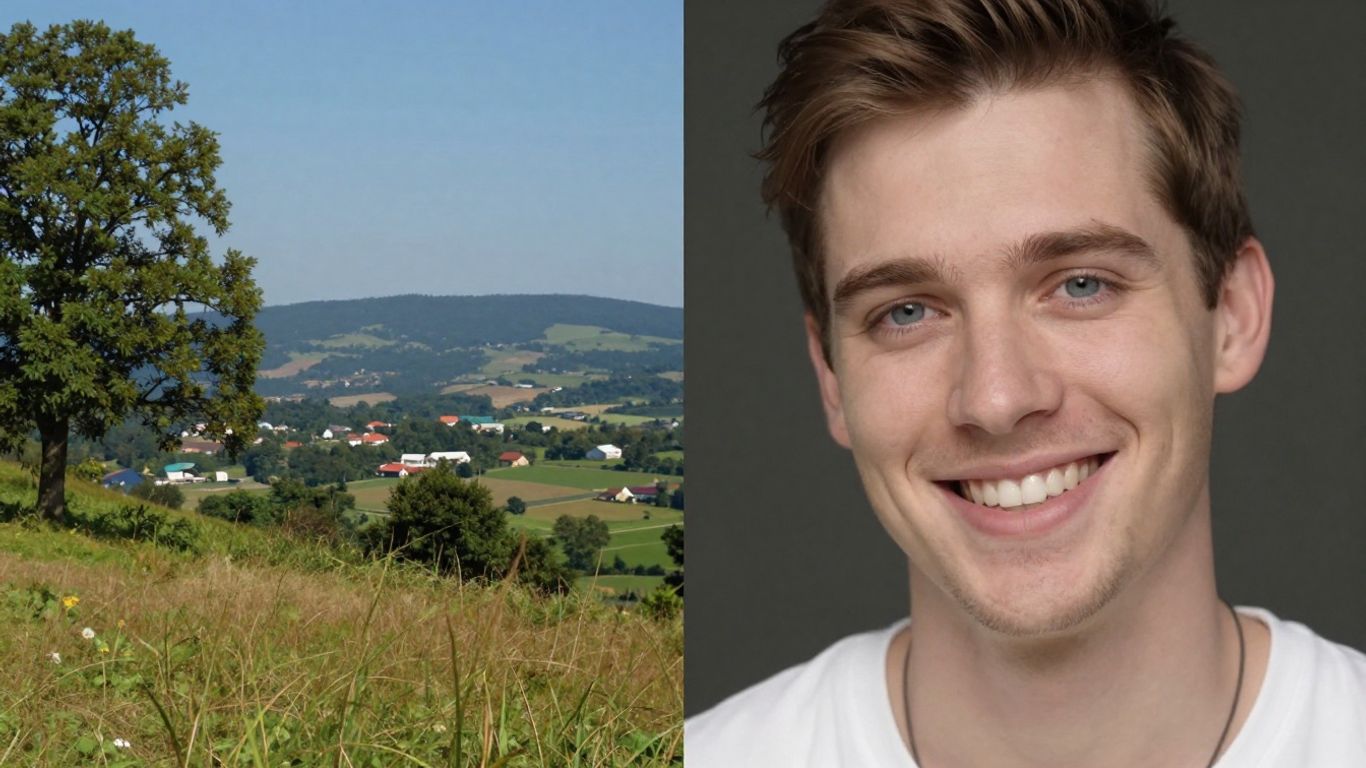
Sometimes, a single photo doesn't tell the whole story, right? That's where the magic of combining two or more images comes in. Think of it as creating a small visual narrative, something that a single photo can't express.
Ease of Editing and Organization
Combining photos might seem complicated, but with the right tools, it becomes a breeze. Instead of having a bunch of scattered files, you can consolidate everything into a single image. This not only makes your gallery more organized but also simplifies editing. You know when you want to apply a filter or make a general adjustment? Doing this on a combined image is much more practical than having to repeat the process on several separate photos. It's a way to optimize your time and ensure everything looks the same.
Creating Unique Compositions
This is the most fun part, in my opinion. Combining photos opens up a range of creative possibilities. You can, for example, put a photo of yourself on one side and an incredible landscape on the other, as if you were there. Or perhaps mix an old photo with a current one to show the passage of time? Collages and montages allow you to create something totally new that expresses a specific idea or feeling. It's like painting with photos, you know? You have complete freedom to experiment and create something that truly represents you.
Quick and Effective Sharing
Ultimately, we take photos to show the world, right? And when you combine two or more images into one, sharing becomes much more direct. Instead of sending several photos one after the other, you send a single image that summarizes everything. This is great for social media, where attention spans are short, or for sending to friends and family. A well-composed image attracts more attention and communicates your message more clearly and impactfully. It's a way to make your posts stand out from the crowd.
Essential Apps for Combining Images
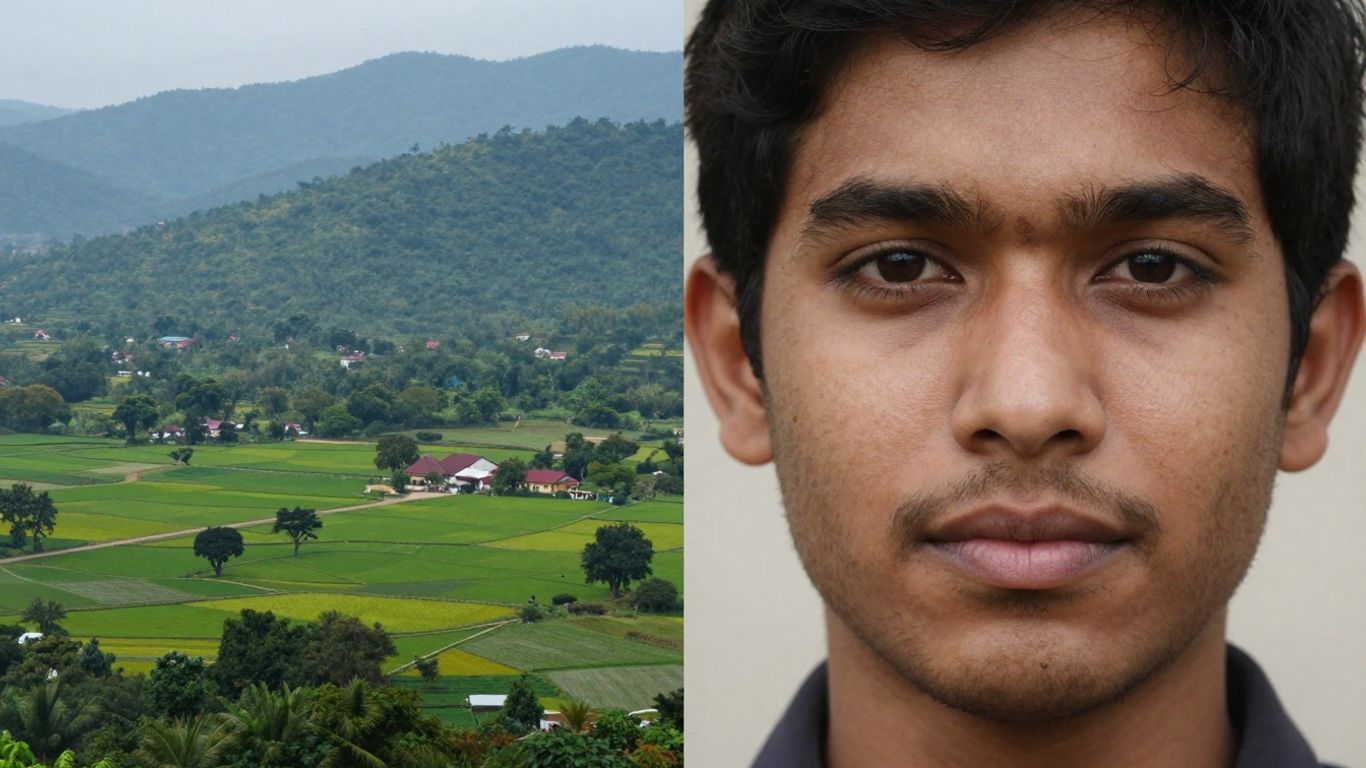
Sometimes, combining two or more photos is more than just a necessity; it's a way to tell a story or create something visually interesting. Fortunately, you don't need to be a design expert to do this. There are several apps that make the process very simple and accessible.
PicsArt: Versatility and Features
PicsArt is one of those apps you've probably heard of. It's known for being a true Swiss Army knife of photo editing. You can do a little bit of everything, from basic adjustments to more elaborate creations. To combine photos, it offers a very intuitive collage mode where you can choose predefined layouts or create your own. It's easy to drag and drop images, resize, and adjust positioning. In addition, it has a huge number of filters, effects, and text tools that help give a personal touch to your compositions. If you like to experiment and want an app that does almost everything, PicsArt is a solid choice.
Canva: Creative Design and Collages
Canva is more focused on graphic design, but that doesn't stop it from being great for combining photos. It stands out for the number of ready-made templates you can use. Want to make a social media post, a banner, or simply a beautiful collage? Canva has a template for that. The interface is super user-friendly, even for those who have never used a design program before. You can upload your photos, drag them into the templates, and make adjustments. The cool thing is that it already considers the composition, so the result tends to be very professional. It's a lifesaver for anyone who needs something quick and good-looking.
Pixlr: Quick Online and Mobile Editing
Pixlr is an interesting option because it works both in your computer's browser and on your mobile phone. It has a more traditional photo editor feel, but with tools that make merging images easier. You can open multiple photos and work with layers, giving you more control over the result. For those who want something more straightforward, it also offers quick collage options. The online version is especially useful if you don't want to install anything. It's a versatile tool that appeals to both those who want to make quick edits and those seeking a little more control.
Photopea: Free Alternative to Photoshop
If you've ever ventured into the world of Photoshop, you'll feel right at home with Photopea. It's an online editor that mimics many of the functionalities of Adobe's program, but it's completely free. To combine photos, you can use the layer system, masks, and selection tools for precise control. It's a bit more complex than the other apps mentioned, but the results you can achieve are professional-level. If you need advanced features without spending anything, Photopea is an excellent choice. It allows you to work with high-resolution files and make detailed edits, as if you were using desktop software.
Free Online Tools for Merging Photos
Sometimes, you just want to quickly combine two photos without having to download a huge program or get lost in complicated menus. Fortunately, the internet is full of free options that do this job very simply. These tools are great for those who need a quick result and don't want to spend any money.
CapCut Web: AI-powered Combinator
CapCut Web has a really interesting feature that uses artificial intelligence to combine your photos. You upload the images you want to combine, you can give some hints about what you expect (a kind of 'prompt', you know?) and the AI tries to create something new. It's cool because it considers the composition, colors, and lighting to make everything look more natural. They say they use a model called Seedream 4.0, which helps to make everything sharper and higher resolution, without a watermark when downloading. It's a lifesaver for those who want something different without having to be an editing expert.
Pippit: Simple and Professional Blending
Pippit focuses on being easy to use, but with a professional-looking result. It has ready-made templates that you can use; just drag and drop your photos and adjust them. You can create collages for social media, compare products, or create a more polished look. They also offer filters to add a special touch and unify the style of the images. The idea is that anyone can put photos together in a cool way, even without design experience.
AI-powered Image Combiners
Besides CapCut, there are other websites that use AI to combine images. They work similarly: you upload your photos, sometimes describe what you want, and artificial intelligence does the magic. These tools are great for those who want to experiment and see what technology can do. They can help mix styles, create unexpected compositions, or even make elements from different photos appear to interact. It's a field that's growing rapidly and worth keeping an eye on.
Using these free online tools is a practical way to enhance your photos without complications. They democratize access to editing resources that were previously only available to those who understood more complex programs.
How to Choose the Ideal Tool
Choosing the right tool to merge your photos can seem complicated with so many options out there, but it doesn't have to be. Think of it like choosing the right knife to cut bread: you want something that works well for what you need to do, without being too complicated. The secret is to align the tool with your goal and your comfort level.
Evaluate the Ease of Use
If you're just starting out or simply want something quick, look for interfaces that seem intuitive. Those with clear buttons that don't leave you confused right away are the best. Many tools offer tutorials or quick tips, which are very helpful. If the tool frustrates you before you even start combining photos, it's probably not the right one for you.
Check the Available Resources
What exactly do you want to do? Just put two photos side by side? Create an elaborate collage with multiple images and text? Some tools are more basic, focused on merging images in a simple way. Others, like Canva or PicsArt, offer a lot of templates, effects, and more advanced editing options. Think about whether you need:
- Ready-made templates for social media
- Various layout options
- Color and light editing tools
- Adding text and stickers
- Artificial intelligence resources for merging
Consider Compatibility and Cost
Do you prefer using it on your cell phone, computer, or does it not matter? Check if the tool has an app for your operating system (Android, iOS) or if it works well in your PC's browser. And, of course, the cost. Many tools offer free versions that are sufficient for most people. If you need something more professional, then it might be worth looking at the paid options, but start with the free one!
Don't settle for the first option you find. Trying out a few free tools is the best way to discover which one best fits your workflow and your expectations for results. Sometimes, a tool that seems simple at first can surprise you with how much it allows you to do.
Step-by-Step Guide to Merging Your Photos
Combining two or more photos might seem complicated, but with the right tools and a little practice, it becomes quite easy. Let's detail the process so you can do it without any headaches.
Image Selection and Upload
The first step is to choose which photos you want to combine. Think about what you want to show with the combination. Are they two photos from the same event, but from different angles? Or perhaps a photo of yourself and a landscape you liked? The choice of images will set the tone for the final result.
After choosing, it's time to put those photos into the tool you're going to use. Most apps and websites have an "upload" or "add image" button. You click on it and select the files from your computer or phone. If you're using a tool like... CapCut Web, The process is quite straightforward, usually with a space to drag and drop files or a button to search for them.
Adjustment and Composition in the Layout
With the photos uploaded, the next step is to organize them. This is where the magic begins. You'll decide how the images will fit together.
- Positioning: Drag the photos to where you want them to be. Some tools allow you to place them side by side, others on top of each other, or even in more complex formats.
- Size: Adjust the size of each photo. You may want one to be larger than the other, or they may be the same size. Use the handles that appear on the edges of the images to resize them.
- Alignment: Many tools offer guides or grid lines to help align photos perfectly. This makes a huge difference in the final look, giving it a more professional feel.
Composition is everything. Think about how the elements in the two photos interact. Sometimes, a small adjustment in position can completely change the story the image tells.
Final Editing and Salvage
After arranging the photos in the desired layout, it's time to add the finishing touches. This may include:
- Color and Light Adjustments: If the photos have very different colors, you can try to even them out. Adjusting the brightness, contrast, and saturation can help make the images appear to belong to the same scene.
- Filters and Effects: Use sparingly! A subtle filter can add extra charm, but overdoing it can make the photo look artificial.
- Add Text or Elements: If desired, you can add text, a logo, or other graphic elements.
When you're satisfied with the result, it's time to save. Look for the "Save," "Export," or "Download" option. Usually, you can choose the image quality. For online sharing, good quality is sufficient, but if you're printing, choose the high-resolution option to avoid losing detail. The important thing is that the final result conveys the idea you had in mind.
Combining Photos with Artificial Intelligence
How AI Facilitates Merging
Using artificial intelligence to combine photos might seem otherworldly, but in reality, it makes everything much simpler. Remember that editing that used to take hours? AI does it in seconds. It analyzes your images, understands the light, the colors, and even the composition so that the photos fit together naturally. It's like having an assistant who knows exactly what to do to make everything harmonious. Tools like CapCut Web use advanced templates for this, allowing you to mix styles and create compositions that were previously quite complicated to do manually. AI not only speeds up the process, but also improves the quality of the final result.
Creative Prompts for Personalized Results
One of the coolest things about AI is that you can give it instructions in text, so-called prompts, To guide the editing process, instead of fiddling with a bunch of buttons, you simply say what you want. For example, you can ask it to "combine the dog photo with the beach background in an oil painting style" or "place the person in front of the mountain, but with sunset lighting." The AI interprets this and tries to create exactly what you described. The more detailed the prompt, the closer to the result you imagine. It's a way to have creative control without needing to be an editing expert. You can experiment with it. AI-powered image generators to get ideas on how to formulate your commands.
Color and Lighting Optimization
Combining photos isn't always easy when they were taken at different times or under different lighting conditions. One photo might be brighter, another darker, one with warmer tones, another cooler. Artificial intelligence excels at solving this. It can automatically adjust the colors and lighting of each image so that they complement each other. This means that the transitions are smoother and the final result looks like a single photo, not two or more images haphazardly stitched together. This ability to harmonize visual elements is what makes the difference between an amateur montage and a professional-looking image, even when you're using free tools.
Creating Collages and Specific Compositions
Sometimes, simply combining two photos is just the beginning. You might want to create something more elaborate, like a collage that tells a story or a visual composition for a specific project. Fortunately, there are tools that make this task much easier, even if you're not a professional designer.
Templates for Social Media and Marketing
If you use photos to promote something, whether it's a product, a service, or an event, well-made collages attract more attention. Think about Instagram posts, Facebook banners, or even images for ads. Tools like... Pippit They offer ready-made templates that already come with layouts designed for marketing. You only need to change the photos and adjust the text, if necessary. This saves a lot of time and the result is usually very professional.
- "Before and After" comparisons: Great for showcasing the results of beauty treatments, makeovers, or workouts. Placing images side-by-side makes the transformation clear.
- Event Announcements: Include photos of the venue, the speakers, or previous editions to build anticipation.
- Product Showcase: Show different angles or variations of the same product in a single image.
Memory Panels and Banners
Want to relive special moments? A memory board can bring together several photos from a trip, birthday, or wedding in one place. It's like creating a visually interesting digital album. For banners, you can combine a main photo with smaller details or text, creating a striking visual for websites or social media.
Creativity is simply about connecting things. Using the right tools to bring your photos together is a way to connect memories and create something new and personal.
Impactful Profile Grades
Some people like to use Instagram's profile grid to create a larger visual, where one image spans multiple posts. This requires a bit more planning, but the effect can be quite cool. You need to divide the large image into smaller parts before posting each one. There are tools that help with this division, making it easier to create this continuous effect in your feed.
Preserving Quality When Combining Photos
When you combine two or more photos, the last thing you want is for the final result to look blurry or low-resolution. It's like trying to bake a cake with poor-quality ingredients; the result simply won't be good. We want our memories to be clear, you know?
The Importance of Resolution
Image resolution is basically the amount of detail it contains. Think of it like the number of bricks used to build a wall. The more bricks (pixels), the more detailed and sharp the image will be. If you combine photos with very different resolutions or use a tool that doesn't handle this well, the result may be a final image with poor definition, especially if you intend to print it or display it on larger screens.
Tools that maintain sharpness.
Not all tools are created equal when it comes to maintaining quality. Some, especially simpler ones or those focused on social media, may overcompress images when merging them. Others, however, are designed to work with the original resolution or allow you to choose the quality level upon export. It's good to look for those that explicitly mention preserving quality or exporting in high definition.
High Definition Export
The final step, saving the image, is just as important as the first. Many tools offer file format options (such as JPG or PNG) and quality levels. To ensure your combined photo looks its best, always choose the high-definition export option or the highest quality available. If you're using a JPG, a higher quality level means less compression and therefore less loss of detail. For PNG, the quality is generally maintained, but the file size can be larger.
Combining photos doesn't have to be rocket science, but attention to technical details is essential for achieving truly good results. Choosing the right tool and knowing how to export makes all the difference in giving your creations that professional look we all love.
Combining Photos of Different Sizes
Sometimes we take photos with our cell phones from different angles, or one is from an older device and another from a newer one. The result? Images with sizes and proportions that don't match. Putting these photos together might seem like a challenge, but don't worry, there's a way!
Challenges of Varying Sizes
The main problem is that when you put photos with very different dimensions side by side, one can end up looking tiny next to the other, or you have to crop important parts of one to make it fit into the space of the other. This can ruin the composition you had in mind, you know? It's like trying to fit together a jigsaw puzzle where the pieces are completely random sizes. We want everything to be harmonious, and the photos don't always cooperate on the first try.
Automatic Alignment Solutions
Fortunately, many modern tools already address this. Apps like Pippit, for example, use artificial intelligence to automatically align and adjust images. You upload your photos, choose a layout, and the tool tries to work its magic, resizing and positioning everything in a way that makes sense. It's a lifesaver for those who don't want to waste time with manual adjustments.
Manual Adjustments for Perfection
But let's be honest, automatic editing isn't always perfect. In those cases, the best way is to resort to manual adjustments. Most editors allow you to click and drag the edges of photos to resize them. You can also move the images to find the ideal point. Some tools even show grid lines to help with alignment. The secret is to be patient and keep adjusting until you're happy with the result. Don't be afraid to experiment until you find the perfect fit for your images.
Tips for a Professional Result
Combining two photos might seem simple, but to get a final result that looks like something you'd actually want to show off, there are a few tricks. It's not just a matter of placing one image next to the other and calling it a day. You need to think a little more about it.
Harmonizing Styles and Colors
First, look at the two photos you want to combine. Do they have a similar mood? Do the colors complement each other? If one photo is super vibrant and colorful, and the other is darker and more serious, they might clash. Try adjusting the brightness, contrast, or even the saturation of one of them so they match better. Sometimes, applying a subtle filter that affects both can make a huge difference. The goal is for them to appear as if they were taken in the same place, on the same day, even if they weren't.
Use Filters and Effects in Moderation
Filters are great, right? They add that special touch. But be careful not to overdo it. A filter that's too strong can make the image look artificial or, worse, make the two photos you put together look completely different. Think of filters like a spice: a little enhances the flavor, but too much ruins everything. If you're going to use effects, like shadows or highlights, apply them subtly to add depth, but without drawing more attention than the photos themselves.
Final Review Before Saving
This is the part that many people skip, but it's super important. After putting everything together and making adjustments, take a step back and look at the result with fresh eyes. Ask a friend to take a look, if possible. Sometimes we get so focused on the details that we don't notice a silly mistake, like a small piece of image sticking out where it shouldn't be, or a color that looks strange. Check if everything is aligned, if the colors are harmonious, and if the overall composition makes sense. A good review avoids that "oh no, it could have been better" feeling after you've already saved it.
Combining photos isn't just about technique; it's about telling a visual story. Think about how the two images together create a new narrative or reinforce an idea. Composition, colors, and lighting must work together to convey the desired message clearly and pleasingly.
To conclude
And there you have it! Combining photos doesn't have to be a daunting task. With so many online tools and apps out there, you can do a really cool job without spending a penny and without needing to be a computer expert. Whether it's creating a nice collage to post on social media, combining those travel photos that wouldn't fit in one, or just organizing your memories in a different way, now you have a ton of options. The important thing is to experiment and see which tool works best for you. Have fun combining your photos and creating something unique!
Frequently Asked Questions
What's the best way to combine two photos for free?
There are several apps and websites that do this for free! Canva and PicsArt are super popular and easy to use. They let you put photos side by side, create collages, or even mix them in a really cool way, all without spending a penny.
Do I need to be an expert editor to put photos together?
Absolutely not! Nowadays, programs are made for everyone. With simple menus and easy-to-understand buttons, anyone can quickly combine photos, even if they've never edited anything before. Just drag and drop!
Can combining photos ruin their quality?
If you use the right tools, no problem! Many programs allow you to save the final image with the same quality as the originals, or even better. The secret is to choose the option to export in high resolution.
Is it possible to combine photos that are different sizes?
Absolutely! The most modern tools know how to handle this. They automatically adjust the photos to fit perfectly in the space you've chosen, whether you want to place them side by side or create a collage.
Which tools use artificial intelligence to combine photos?
Artificial intelligence is helping a lot with this! Tools like CapCut Web and some functions within Canva use AI to blend photos in a smarter way, combining colors and lighting for a more natural and professional result.
Can I use these tools on my mobile phone?
Yes! Most popular apps, such as PicsArt, Canva, and even versions of Pixlr, have mobile versions (Android and iOS). This allows you to edit and combine your photos anywhere.
Is it better to use an app or a website to merge photos?
It depends on what you prefer! Mobile apps are great for quick edits and for those who are always on the go. Websites, like Canva or Photopea, can be more comprehensive and better for those who prefer to edit on a computer with a larger screen.
How can I make my photos together look professional?
For a professional look, try to harmonize the colors and style of the photos. Use filters sparingly and think about how they complement each other. A good tip is not to overdo the effects and to give it a final look before saving, to see if everything turned out the way you wanted.