
Want to watch that cool video from your phone on the big TV screen? Many people think it's complicated, but the truth is there are several easy ways to do it. Whether wired or wireless, with cables or using gadgets, you can enjoy your favorite content without any hassle. Let's see how to connect your phone to your TV and make it even more fun.
Key Points
- Connecting your phone to your TV via Wi-Fi is simple, using features like AirPlay on iPhones or "Cast screen" on Androids.
- For TVs that are not smart or for a more stable connection, HDMI cables with adapters or USB cables can be used.
- Devices like Chromecast and Amazon Fire TV Stick make wireless streaming easy, turning regular TVs into smart TVs.
- Screen mirroring, also known as Miracast, allows you to duplicate the content of your mobile phone on your TV without needing extra apps, if the devices are compatible.
- Troubleshooting connectivity issues involves checking the Wi-Fi network, internet speed, and ensuring devices are properly paired.
Connecting your phone to the TV via Wi-Fi
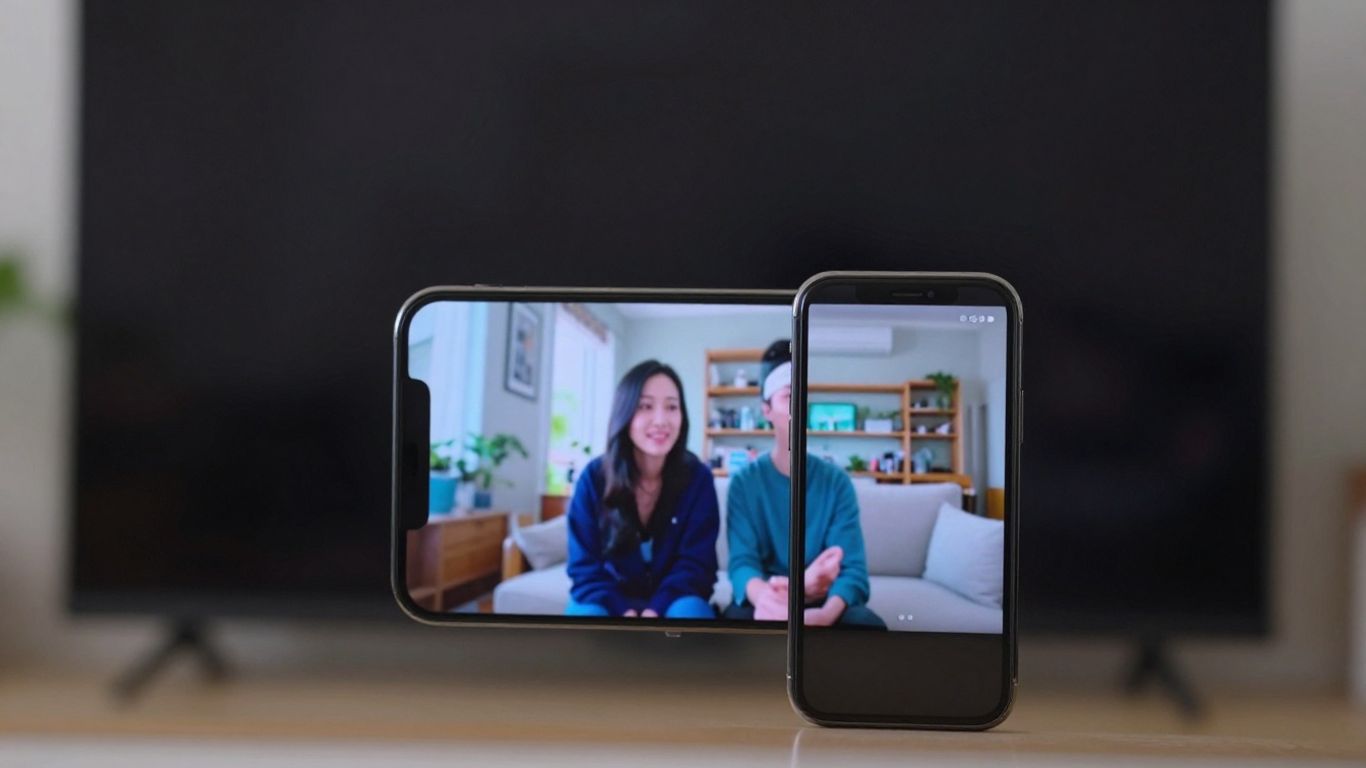
Connecting your phone to your TV via Wi-Fi is by far the most practical and wireless way to enjoy your favorite content on a bigger screen. Forget about tangled cables that restrict your movement. With a wireless connection, you can relax on the couch and control everything from your smartphone.
Mirroring the iPhone Screen
If you have an iPhone, the process is quite straightforward. The secret is to use the native iOS function. First, make sure your iPhone and your Smart TV are connected to... same Wi-Fi network. This is essential for them to meet.
- Open Control Center on your iPhone. You usually do this by swiping down from the top right corner of the screen (on older models, it may be swiping up from the bottom).
- Look for the "Screen Mirroring" icon (it looks like two overlapping rectangles).
- Tap it. Your iPhone will begin searching for compatible devices on the network.
- Select the name of your TV from the list that appears.
- A code may appear on the TV screen. Enter this code on your iPhone when prompted and confirm.
Done! Your iPhone screen should now be displayed on your television. It's great for showing photos, videos, or even presenting something at work.
Streaming Content from Android
For Android users, it's also quite simple, but it may vary slightly depending on the brand of your phone and TV. Many newer TVs already come with features that facilitate this connection, such as "Screen Share" or "Screen Mirroring".
The general procedure is similar:
- Check that your Android phone and your Smart TV are on the same Wi-Fi network.
- On your phone, go to Settings.
- Look for options like "Connection and Sharing," "Connected Devices," or something similar.
- Within these options, you should find something like "Cast," "Screen Cast," or "Screen Mirroring.".
- Select this option. Your phone will search for available TVs.
- Choose your TV's name from the list and confirm.
If your TV is a brand like Samsung or LG, you may need to download a specific brand app on your phone for the connection to work better. But, most of the time, the native Android function is sufficient.
Using Native Smart TV Apps
Modern Smart TVs are true entertainment centers, and many of them already come with their own apps to facilitate connection with your mobile phone. Think of them as direct "bridges" between your smartphone and the TV.
- Samsung: It usually uses "Smart View".
- LG: It usually has "Screen Share" or "Miracast".
- Other brands: Many other TVs offer similar features, sometimes called "Screen Mirroring" or "Mobile Phone Connectivity".
To use these apps, the process is very similar to what we've already described: both devices need to be on the same Wi-Fi network. You open the app on the TV (or look for the function in its settings) and, on your phone, look for the mirroring or streaming option, selecting the TV as the destination. It's a very reliable way to ensure everything works correctly, since the apps are designed to optimize communication between devices from the same manufacturer.
Wired Connection Options
Sometimes, wireless connections can be a headache, right? Network outages, slow speeds… In those moments, a good old cable can be a lifesaver. Connecting your phone to your TV using a cable is a direct and often more stable way to stream your content. Let's look at the options.
Direct Connection via HDMI Cable
This is the most traditional method and, for many, the one that offers the best image and sound quality. Basically, you'll need an HDMI cable and, depending on your phone, an adapter.
- Check the doors: Your TV needs to have an HDMI input, and most modern TVs have several. Your cell phone, on the other hand, may need an adapter.
- Adapters: For iPhones, you'll need a Lightning to HDMI adapter. For Android phones, the type of adapter varies. Older models may use micro USB to HDMI, while newer ones with a USB-C port may require a USB-C to HDMI adapter.
- Connecting: Connect one end of the HDMI cable to the TV and the other end to the adapter connected to your cell phone. Then, on the TV, select the correct HDMI input using the remote control (usually under "Input" or "Source").
This connection is great because it doesn't depend on your Wi-Fi network, ensuring smooth transmission.
MHL and USB-C Adapters for Connection
Speaking of adapters, it's worth mentioning MHL (Mobile High-Definition Link). It's similar to HDMI, but has an extra advantage: it allows you to charge your phone while it's connected to the TV. The problem is that not all newer phones come with MHL support. If your phone has a USB-C port, life is easier, as many USB-C to HDMI adapters work directly, without complication.
Screen mirroring with a USB cable on non-Smart TVs
What if your TV isn't a Smart TV? You can still make the most of it! Using a USB cable, you can connect your phone and play photos, videos, and even documents stored on it. It's not full screen mirroring like on Smart TVs, but it's a lifesaver for viewing that photo album on the big screen.
- Connect the USB cable from your cell phone to the USB port on your TV.
- On your mobile phone, you may need to authorize the connection as a media device.
- On your TV, browse the USB input options to access content from your mobile phone.
Remember that this USB connection on non-smart TVs is more limited. It works like a giant flash drive, allowing you to access files, but not run apps or mirror your phone's entire screen.
This is a simple solution for those who just want to view files from their cell phone on their TV without needing much technology.
Wireless Transmission Devices
If you want to send that cool video from your phone to the big screen TV without getting tangled in wires, wireless streaming devices are your best friends. They act as a bridge between your smartphone and the television, using the Wi-Fi network to send the content. It's a lifesaver for those who want more convenience when watching movies, series, or even showing photos to friends.
How to Use Google Chromecast
The Chromecast, that little Google device, is super popular and easy to use. Basically, you plug it into your TV's HDMI port and into a power source, and then it connects to your Wi-Fi network. After that, you just grab your phone, open the Google Home app, choose the TV where the Chromecast is connected, and select "Cast screen." Simple as that!
- Connect the Chromecast to your TV and to a power source.
- Download and open the Google Home app on your phone.
- Make sure your phone and Chromecast are on the same Wi-Fi network.
- Select your Chromecast in the app and tap "Cast screen".
Connecting with the Amazon Fire TV Stick
Amazon's Fire TV Stick is another cool gadget that does something similar. The big difference is that, in addition to being on the same Wi-Fi network, your Android phone needs to be compatible with Miracast technology. If it is, the process is as follows:
- On the Fire TV menu, go to "Settings" and then to "Display".
- Enable the "Enable display mirroring" option.
- On your phone, open the mirroring app (usually found in the connection or display settings).
- Find your Fire TV Stick in the list of available devices and connect.
Remember that the Fire TV Stick needs to have screen mirroring enabled for your phone to find it.
Exploring Various HDMI Dongles
The market is full of other HDMI dongles, which are like cousins to the Chromecast and Fire TV Stick. Each has its own particularities, but the general idea is the same: to wirelessly send content from your phone to your TV. Some models may offer extra features, such as the ability to connect other devices like laptops, or have a slightly different configuration. It's worth taking a look at the specifications of each one to see which best suits your needs. Most work in a very similar way, requiring that the phone and the dongle are on the same Wi-Fi network, and then you just need to find the mirroring option on your phone and select the dongle.
Specific Solutions for Apple Devices
If you're an Apple user with an iPhone or iPad, the good news is that integration with other Apple devices is very straightforward. Apple has thought about making life easier for those already immersed in its ecosystem.
Mirroring with Apple TV
For those who have an Apple TV at home, mirroring the screen of their iPhone or iPad is super easy. Basically, you'll use AirPlay, which is Apple's wireless technology for sharing content. It's as if your TV becomes an extension of your cell phone, but with a much larger screen.
The step-by-step process is more or less like this:
- Make sure your iPhone/iPad and Apple TV are connected to the same Wi-Fi network. This is crucial for them to meet.
- Open Control Center on your iOS device. Usually, you just swipe down from the top right corner of the screen (on newer models) or up from the bottom (on older models).
- Look for the "Screen Mirroring" icon (two overlapping rectangles).
- Tap it and you'll see a list of available devices. Select your Apple TV.
- A code may appear on the TV screen. Enter this code on your iPhone/iPad when prompted.
- Done! Whatever you're doing on your phone or tablet will now appear on your TV screen.
It's great for displaying photos, videos, presentations, or even playing games with a wider view.
Alternatives for iPhone and iPad
Not everyone has an Apple TV, right? But don't worry, there are other ways to send content from your iPhone or iPad to the big screen.
- Smart TVs with AirPlay 2: Many newer TVs from brands like Samsung, LG, Sony, and Vizio already come with built-in AirPlay 2. This means you can mirror your Apple device directly to them without needing an extra device like an Apple TV. Just follow the same steps as for AirPlay above, but select your Smart TV from the list of devices.
- HDMI adapters: If your TV isn't a smart TV or doesn't have AirPlay, you can still use an adapter. For iPhones and iPads with a Lightning port, you'll need a Lightning to HDMI adapter. For newer models with USB-C, a USB-C to HDMI adapter will work. Connect the adapter to your phone, then an HDMI cable from the adapter to the TV. It's that simple, and the quality is usually quite good.
- Third-party applications: There are some apps on the App Store that promise to mirror your screen, but they generally work best with specific content (like videos from certain apps) and may require the TV to also have a corresponding app installed. The experience can vary considerably, so do your research before downloading.
The main advantage of using Apple solutions, such as AirPlay, is the fluidity and integration. Everything is designed to work together, which generally results in fewer crashes and a more enjoyable experience, especially if you already use other Apple products. Image and sound quality tend to be preserved, which is great for those who enjoy watching movies or series.
Always remember to check the compatibility of your iPhone/iPad model and your TV with the technology you intend to use. A quick search in the TV manual or your phone's specifications can prevent headaches.
Understanding Screen Mirroring (Miracast)
You know when you want to show that funny video from your phone to everyone in the room, but the small screen gets in the way? Screen mirroring, especially via Miracast, is a technology that helps with that. Basically, it allows you to send what's appearing on your smartphone directly to your television screen. It's as if your TV becomes a giant monitor for your phone.
Integrated Features on Android Devices
For Android users, Miracast often comes built-in. It's a lifesaver because you don't need to download a bunch of extra apps. Usually, the function is called "Cast screen," "Smart View," or something similar, and it's hidden in your device's connection or sharing settings. When activated, your phone starts searching for compatible TVs nearby. It's pretty straightforward, but it's good to know that not all older phones have this feature.
Compatibility with TVs and Smartphones
The big issue here is compatibility. Miracast works as a standard, but not all TVs and not all cell phones support it. Newer Smart TVs usually have this technology. If your TV isn't smart, you may need an extra device, such as an HDMI dongle that supports Miracast. It's important to check the specifications of your cell phone and your TV before trying to connect. Sometimes, the connection may fail simply because one of the devices doesn't speak the same technological "language" as the other.
It's important to remember that during screen mirroring, your phone will be somewhat "busy." Trying to use the device for other things at the same time can cause the image to freeze or the connection to drop. So, if you want to watch a movie without interruptions, it's best to leave your phone undisturbed while it's transmitting the image.
To make it easier, here's a quick summary of how it generally works:
- Check the Connection: Make sure your mobile phone and your TV (or streaming device) are on the same Wi-Fi network. This is almost always the first step.
- Enable Mirroring: On your phone, look for the screen mirroring option (the name may vary) and turn it on. On your TV, look for a similar option or a reception mode.
- Select the Device: Your phone should list the available TVs. Choose yours.
- Please confirm (if necessary): Some TVs require on-screen confirmation to accept the connection.
If the connection is unstable, it could be your Wi-Fi network, internet speed, or even a pairing problem between devices. Sometimes, restarting everything solves the problem.
Bluetooth connection for streaming.
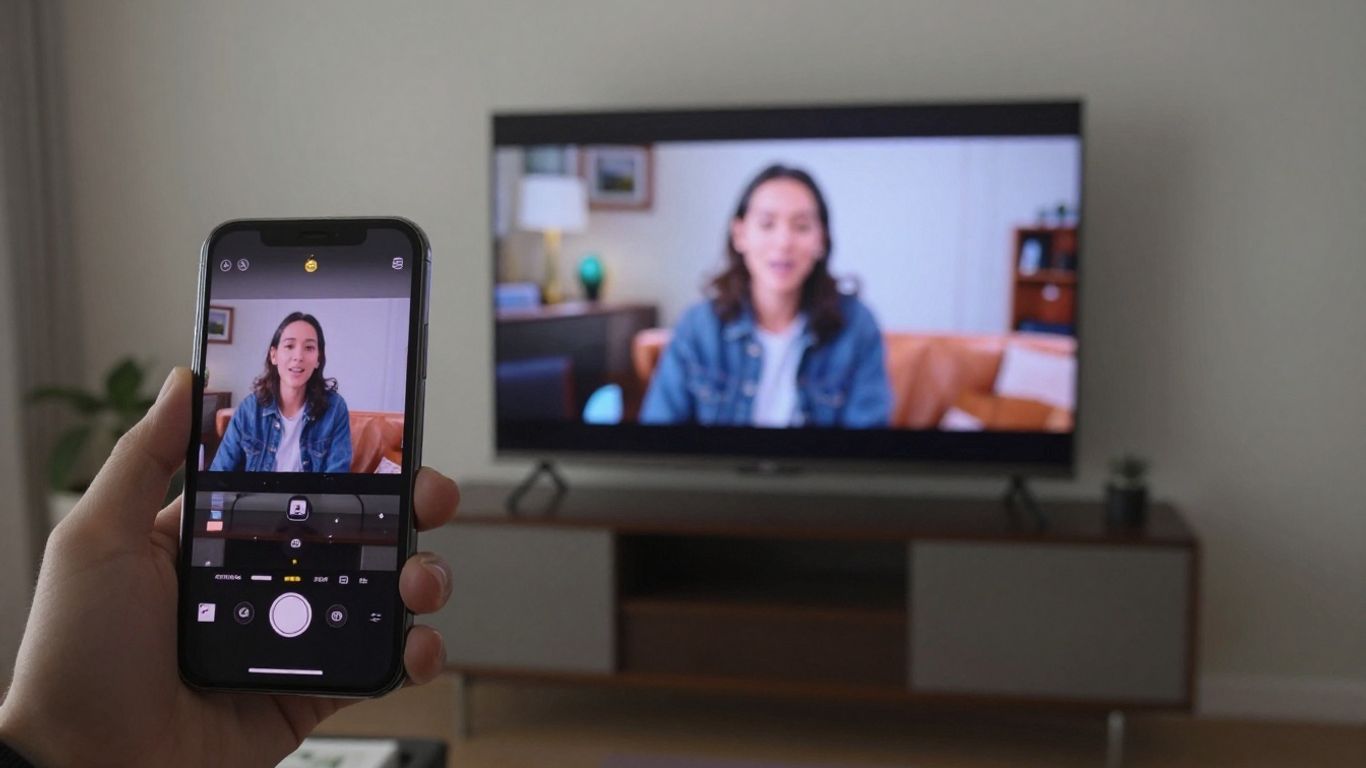
Bluetooth connectivity can be an alternative for transmitting audio and, in some cases, video from your mobile phone to your TV. It's a technology that eliminates the need for cables and is generally very simple to set up. The main benefit is practicality., Since it doesn't require a stable Wi-Fi network to work, only that both devices have Bluetooth and are close to each other.
Device Pairing
To connect your phone to your TV via Bluetooth, the process is quite straightforward. First, you need to activate the Bluetooth function in your phone's settings. Then, look for the option to add a new device. Your TV, if it has Bluetooth enabled and visible, should appear in the list of available devices. When you select your TV's name, a pairing code may be requested on one of the screens, or the connection may be automatic. It is important that the TV is configured to receive Bluetooth connections.
- Access your phone's settings.
- Turn on Bluetooth.
- Look for "Available devices" or something similar.
- Select your TV's name from the list.
- Confirm the pairing, if necessary.
Audio and Video Limitations
While Bluetooth is great for connecting headphones or speakers, when it comes to streaming video to your TV, things can get a little more complicated. Bluetooth technology, especially older versions, has limited bandwidth. This means that video quality may not be as good as with other connections like Wi-Fi or HDMI. You might notice some loss of image quality or even a slight delay (lag) between what's happening on your phone and what's displayed on the TV. For audio, it generally works very well, but for more demanding videos, it may not be the best option. If you're looking for the best image quality, you might need to consider other methods. Connect your phone to the TV..
It's good to know that Bluetooth technology is evolving. Newer versions, such as Bluetooth 5.0 and higher, offer improvements in speed and range, which can result in a smoother video streaming experience compared to older versions. However, compatibility between the phone and the TV is essential to take advantage of these improvements.
Solving Connection Problems
Sometimes, when you try to connect your phone to the TV, it seems like everything is conspiring against you, right? The screen freezes, the audio doesn't sync, or it simply won't connect at all. Don't worry, this is more common than it seems, and most of the time there's a solution. Let's take a look at the most frequent problems and how to fix them.
Unstable Wi-Fi network
If you're trying to mirror your screen or stream content via Wi-Fi, the network is the key factor. An unstable connection is the number one cause of freezes and dropped connections. It's like trying to talk to someone on a rainy day; communication keeps failing.
- Restart your equipment: Turn off your Wi-Fi router, wait about 30 seconds, and turn it back on. Do the same with your TV and cell phone. This simple action solves many problems.
- Bring the devices closer together: If possible, try to place your cell phone and TV closer to the router. Walls and furniture can interfere with the signal.
- Check other devices: Check if other devices in your home are having connection problems. If they are all slow, the problem may be with your internet provider.
- Use the 5GHz network: If your router has both options (2.4GHz and 5GHz), try connecting both devices to the 5GHz network. It's usually faster and less congested, ideal for streaming.
Checking Internet Speed
For video streaming, especially in high definition, a good internet speed is essential. If your connection is slow, the content will take a long time to load and will keep buffering.
The minimum recommended speed for HD streaming is 5 Mbps. For 4K, ideally you should have at least 25 Mbps. If your internet speed is below that, it might be time to consider upgrading your plan.
You can run a quick speed test on websites like Speedtest.net or Fast.com. Compare the result with the speed you're paying for with your internet provider.
Common Pairing Problems
Sometimes, the cell phone and the TV simply can't "see" each other or can't establish a connection. This can happen for several reasons:
- Devices on the same network: Make sure both your phone and TV (or streaming device, such as Chromecast) are connected to the... same Wi-Fi network. It seems obvious, but many people get confused with separate 2.4GHz and 5GHz networks.
- Pending updates: Check for available software updates for both your mobile phone and your TV. Sometimes, a bug in an older version can prevent the connection.
- Application cache: In some cases, clearing the cache of the mirroring app on your TV or phone may resolve the issue. Check your device's app settings.
- Restart pairing: Try "forgetting" the device in the other device's connection list and redoing the pairing process from scratch. This may force a new connection attempt.
| Common Problem | Quick Solution |
|---|---|
| Can't find the TV | Make sure they are both on the same Wi-Fi network. |
| Connection drops | Restart your router, TV, and cell phone. Move the devices closer together. |
| Image freezing | Test your internet speed. Use a 5GHz network. |
| Pairing code | Enter the code correctly. Restart the process. |
If the connection continues to fail even after these tips, it may be a more specific problem with your device or TV. In these cases, consulting the user manual or the manufacturer's technical support may be the next step.
Tips for an Uninterrupted Stream
To ensure your movie or TV series marathon, streamed from your phone, goes smoothly, a few practices can make all the difference. It's frustrating when the image freezes or the sound fails right in the middle of that important scene, isn't it? Let's see how to avoid that.
Avoiding the Use of Your Cell Phone During Mirroring
When you decide to mirror your phone screen on your TV, it's important to understand that the device will be dedicated to this task. Trying to use your phone for other things while the content is streaming can cause instability and interruptions. This includes making or receiving calls, browsing other apps, or even replying to messages. The system needs all available resources to maintain a stable connection and good image and sound quality. Think of it as an exclusive channel for your big-screen entertainment.
Optimizing the Connection for a Better Experience
A well-configured network connection is key to smooth transmission. Here are some points to keep in mind:
- Stable Wi-Fi Network: Make sure both your cell phone and TV (or streaming device) are connected to the same Wi-Fi network. If possible, use the 5GHz band, which generally offers higher speeds and less interference, especially if you live in an area with many nearby wireless networks.
- Distance and Obstacles: Keep your devices as close to the Wi-Fi router as possible. Thick walls, large furniture, and other electronic devices can interfere with the signal.
- Internet speed: Although mirroring itself uses more of your local network, a good internet speed is essential if you're streaming content from streaming services. Check that your connection is adequate for the resolution you want to watch.
- Restart the Equipment: Sometimes, simply restarting your router, TV, and cell phone can resolve connection problems that seemed complicated.
If you notice that the streaming is frequently freezing, before blaming your phone or TV, take a look at your network. Often, the problem lies in the quality of your Wi-Fi signal or your internet speed. A well-organized home network is the first step to a seamless entertainment experience.
- Updates: Make sure your phone's operating system and your TV's (or streaming device's, such as Chromecast's) firmware are up to date. Manufacturers frequently release updates that fix bugs and improve connection performance.
- Avoid Interference: Other devices that use the same 2.4GHz frequency, such as microwaves and some cordless phones, may cause interference. Try to keep these devices away from the transmission area.
Finally: your TV is now a giant screen!
And there you have it! Connecting your phone to your TV might seem complicated at first, but as we've seen, there are several ways to make it work, whether with a cable or via the internet. Now you can enjoy your favorite movies, series, and videos on a much bigger screen, with sound that makes everything even better. Remember that the best way for you will depend on what you have at home and your phone. If one option doesn't work, try another. The important thing is that now you have the tips to transform your living room into your own private cinema. Enjoy!
Frequently Asked Questions
Do I need internet to connect my cell phone to the TV?
For most connection methods, such as mirroring via Wi-Fi or using devices like Chromecast, yes, you will need a working Wi-Fi network. But if you're using a direct cable, like USB or HDMI, mobile internet isn't essential for the image to appear.
Will my old phone work for mirroring on my TV?
It depends on your phone model. If it's an older model and doesn't have mirroring functions or is compatible with adapters, it might work. Newer phones usually have these features.
Can I use my cell phone while it's connected to the TV?
Generally, when you mirror your screen, it's best not to use your phone for other demanding tasks, such as making calls or downloading many files. This can cause the image to freeze or drop.
What's the best way to connect: wired or wireless?
Wired connections, such as HDMI, tend to be more stable and offer better image quality. Wireless connections, via Wi-Fi or devices like Chromecast, are more convenient and eliminate cable clutter, but may experience minor freezes if the network connection is weak.
My TV isn't a Smart TV, can I still connect my phone?
Yes! There are several ways. You can use a device like Google Chromecast or Amazon Fire TV Stick, which connect to your TV and receive content from your phone via Wi-Fi. Or, if you prefer, you can use adapter cables.
What is Miracast and how does it work?
Miracast is a technology that allows you to mirror your phone's screen on your TV wirelessly, like a direct Wi-Fi connection between them. Many Android phones come with this feature pre-installed, and some TVs do too.
Why does the image freeze when I connect my phone to the TV?
This can happen for several reasons: your Wi-Fi internet connection may be weak or unstable, the signal between your phone and TV may be poor, or your phone itself may be overloaded with other tasks.
Do I need to buy any device to connect my cell phone to the TV?
Not always! If your TV is a Smart TV, it may already have features to connect your phone. If not, you may need a device like Chromecast, Fire TV Stick, or use specific cables and adapters.