
Everyone wants to know how to post Instagram Stories from their PC, right? We know that phones are convenient, but sometimes the large computer screen and keyboard make life much easier, especially for those who manage multiple accounts or need more speed. With that in mind, we've gathered the best tips for you to create amazing Stories posts directly from your desktop, without any complications. Let's simplify this together!
Key Points
- It's entirely possible to post Stories on Instagram from a PC, using either a browser or specific tools.
- The most common method in the browser involves using the "Developer Tools" to simulate the mobile environment.
- Meta Business Suite is a great option for business accounts, offering more management features.
- Extensions like INSSIST can simplify the process by adding extra features to Instagram Web.
- Despite the PC options, some of the more advanced and interactive editing features are still exclusive to the mobile app.
Understanding Instagram Stories
What are Instagram Stories?
Instagram Stories are those quick posts that disappear after 24 hours. Think of them as a visual diary of your day, where you can share moments, thoughts, or news in a more spontaneous way. Launched in 2016, they quickly became a central part of the platform experience, changing how we interact with and consume content. It's a dynamic format that allows for a more immediate connection with your audience. Unlike traditional feed posts, Stories are more informal and focused on the "now".
The Importance of Stories for Engagement
Do you know why Stories have become so popular? They're a powerful tool for increasing engagement. Because they disappear in a day, they create a sense of urgency, encouraging people to check out what you've posted before it's gone. This means more views and interactions. Furthermore, the variety of features like polls, question boxes, quizzes, and interactive stickers invites the audience to actively participate. Using Stories strategically can really make a difference for those who want to stand out. They're great for showing behind-the-scenes content, launching new products, or simply keeping your audience updated on what's happening. For anyone managing a profile, whether personal or professional, understanding how to use Stories effectively is an important step towards success. build an online presence stronger.
How to Post Stories on Instagram from Your PC via a Browser
Many people think that posting Stories on Instagram is something you can only do from your phone, right? But the truth is, you can do it from your computer too, and it's not rocket science. We'll show you how to do it using only your internet browser. It's a trick that uses the tools that already come with the browser, so you don't need to download anything extra, which is great.
Accessing Instagram Web
First of all, you need to access Instagram through your browser. Just type www.instagram.com In the address bar, log in to your account as you normally would. The page will load the desktop version, the one we're used to seeing on our computers.
Using the Developer Tools
Now comes the tricky part. To make Instagram think you're on your phone, we're going to use "Developer Tools." It's a feature that programmers use to test websites on different devices, and we're going to take advantage of that.
- With Instagram open in your browser, press the key.
F12on your keyboard. This will open a panel on the side or bottom of the screen. - Look for an icon that resembles a cell phone and a tablet together, usually in the upper left corner of that panel. Click on it.
- After clicking on this icon, reload the page by pressing
F5. You'll notice that the Instagram screen will change, taking on the appearance of a mobile phone.
Simulating the Mobile Version for Posting
With the screen now resembling that of a mobile phone, you'll see the option to create a Story. Just click on your profile icon at the top or the "+" button and follow the normal process. You can choose a photo or video from your computer and make some basic edits, such as adding text. It's important to know that this simulation doesn't offer all the filters and effects you find in the app. Think of it as a quick way to upload content without having to pick up your phone.
Remember that this technique works best in Google Chrome. Other browsers may behave differently or not offer the same options in the developer tools.
Publishing Instagram Stories from your PC with Meta Business Suite
For those who manage a business or creator account on Instagram, Meta Business Suite emerges as a very interesting tool for posting Stories directly from a PC. It's geared more towards those who need organization and a certain amount of planning, you know? It's not as full of effects and filters as the app, but for the basics, it works.
Access to Meta Business Suite
First, you need to access the Meta Business Suite website (business.facebook.com). Log in with your Facebook account, which must be linked to your Instagram business account. If you haven't made this connection yet, it's a good idea to look into how to do it beforehand, because the Business Suite requires this link.
Creating and Publishing a Story
After logging in and selecting the correct profile (usually on the left side of the screen), look for the "Create story" option or something similar. You will be able to add a photo or video from your computer. It allows you to make some adjustments, such as cropping the image, adding text, and even some basic stickers. After editing, just click "Share now".
One cool thing is that you can program You can schedule your Story to go live on a different day and time. This greatly helps maintain consistency in your posts without having to constantly remember to do everything at the last minute.
Advantages for Business Accounts
Meta Business Suite is designed for businesses, so it offers some features that the regular app doesn't have as readily available. Post scheduling is one of them. In addition, you can get an overview of your posts and, depending on your account, even see some performance reports. For those who need to manage multiple accounts or keep a content calendar organized, this tool can be a lifesaver. It's a more professional way to manage Instagram from your computer, focusing on practicality and management.
Exploring Extensions to Facilitate Posting on PC
Sometimes, Instagram on a computer seems like it's only meant for a quick glance, right? But what about when we want to post a Story quickly, without having to grab our phone? That's where browser extensions come in. They're like 'tricks' that we install in Chrome to make the Instagram website look more like the app.
Learn about the INSSIST Extension
One of the most talked-about and truly effective apps is INSSIST. Think of it as an extra helper for your Instagram on your PC. It not only allows you to post Stories, but also does other useful things, like downloading videos and images from other profiles, which can be very practical for those who work with content.
Extension Installation and Configuration
Installing INSSIST is a breeze, as long as you use Google Chrome. Just go to the Chrome extension store, search for "INSSIST" and click install. After installation, you'll need to log in to your Instagram account through the extension. It's basically entering your username and password, just like you would on the regular website. The extension will give you a screen that mimics the mobile app, and that's where the magic happens.
Publishing Stories with INSSIST
With INSSIST open and you logged in, the interface looks very similar to the app. To post a Story, just look for the add button (usually a '+') and select the Story option. From there, you choose the photo or video from your computer, edit it as you like – adding text, using the pen, etc. – and publish it. You can choose who sees it, whether it's for everyone or just close friends, and even share it on Facebook all at once. It's a much more direct way to keep your Stories up to date without needing your phone in your hand all the time.
It's important to remember that while extensions like INSSIST are very helpful, they don't replace the 100% app experience. Some more advanced tools or specific effects may not be available or may work differently. But for most day-to-day posts, they're incredibly useful.
Editing Features Available for Stories on PC
When you decide to post a Story from your computer, whether through a browser or Meta Business Suite, it's good to know that some editing tools are available to you. It's not the same as using the mobile app, of course, but you can make basic adjustments and make your content more interesting. You can add text, choose different fonts and colors, and even use some stickers.
Adding Text and Visual Elements
For those using Instagram Web with developer tools enabled, the interface is quite similar to the mobile version. As soon as you select your photo or video, options appear at the top of the screen. That's where you'll find the text tool, where you can write whatever you want. You can change the text color, background, and alignment. In addition, some... stickers Basic options are available, such as date or time, and you can draw on the image if you want to add a more personal touch.
Editing Limitations Compared to the App
It's important to keep in mind that the PC doesn't offer everything the app does. Things like interactive filters, adding popular music, dynamically mentioning other profiles, or inserting direct links (for accounts that have that permission) are not available. If you want to use those augmented reality or sound effects, you'll have to use your phone. The desktop experience is more focused on the ease of uploading content, not so much on creating elaborate effects.
Basic Adjustments to Images and Videos
Before publishing, you can make some simple adjustments. For example, if the image isn't in the ideal format, you can crop it a little. For videos, the options are even more limited, generally boiling down to cutting the beginning or the end. Don't expect advanced video editing tools here; the focus is more on uploading the material and making quick adjustments to make it presentable. For more elaborate edits, it's best to prepare the material beforehand in another program and then upload it.
Posting Stories from a PC is a lifesaver for those who need speed, but to explore all the creativity and interactivity that Instagram offers, the mobile app remains the primary way to go. Think of the PC as a shortcut for more direct posts and the app as a complete studio.
Differences Between Stories and Other Formats on Instagram
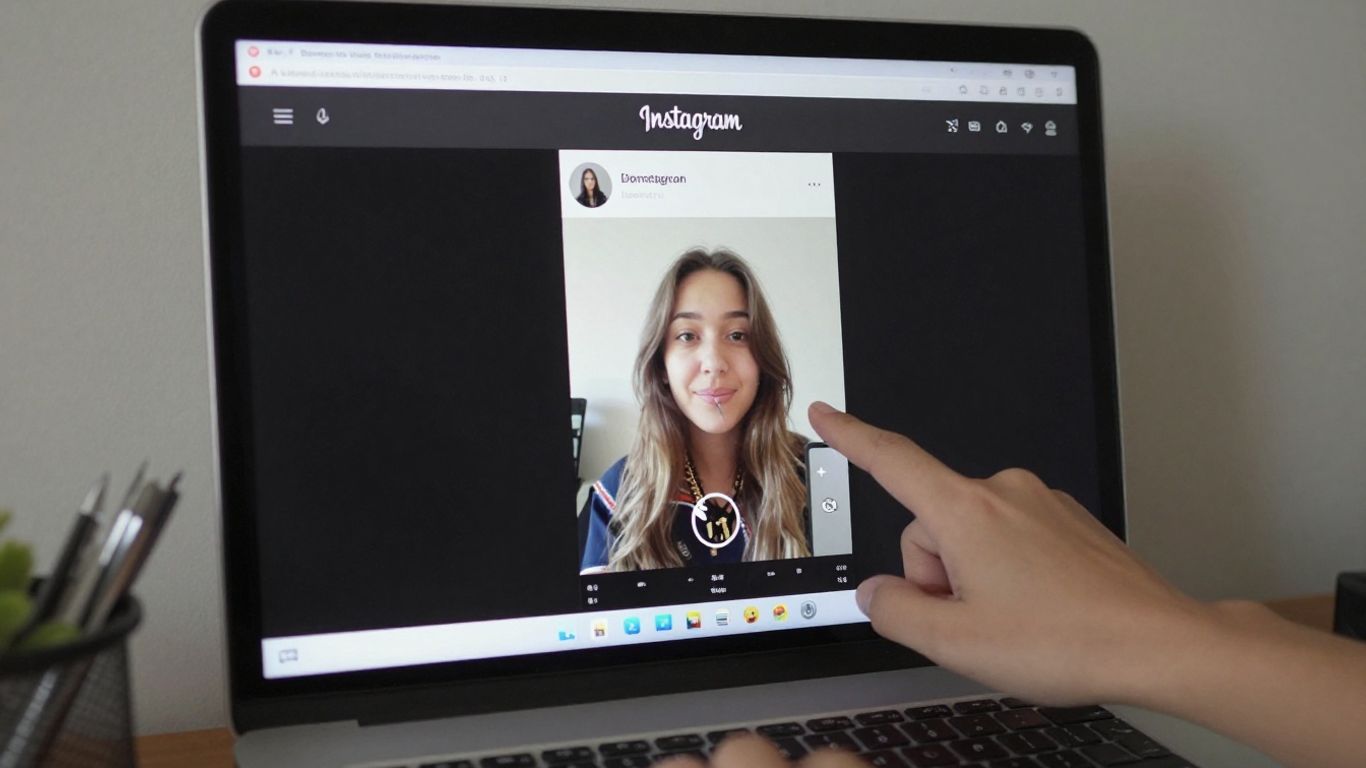
You know, Instagram is a universe of formats, and each one has its own style. Stories, for example, are those pieces of content that disappear after 24 hours. They're great for everyday life, for showing behind-the-scenes moments, doing quick polls, or sharing something more spontaneous. Think of them as an informal chat with your followers.
Stories vs. Traditional Posts
Traditional posts, the kind that stay in your feed, are more permanent. They're like the photos and videos you'd post in an album. Here, you can put more effort into the caption, use hashtags to reach more people, and tell a story in more detail. While Stories are ephemeral and focused on spontaneity, feed posts aim for a more lasting impact and a more elaborate presentation.
- Stories: Quick content, available 24 hours a day, ideal for everyday use and immediate interactions.
- Feed: Permanent content, great for showcasing your portfolio, telling longer stories, and building a consistent presence.
- Reels: Short and dynamic videos, focused on entertainment and viral reach.
It's important to understand that each format serves a different purpose. Using Stories for something very planned may not have the same effect as using a feed post. And vice versa.
The Exclusivity of Reels on the App
Reels are a category of their own. They are short videos, usually with music and effects, designed to be fun and shareable. Instagram has given them a boost, so their reach can be much greater. However, one thing you need to know is that, most of the time, the full Reels experience, with all the editing tools and effects, is something you can only find on the mobile app. Trying to create a super elaborate Reel on a PC can be more complicated or even impossible, depending on the tools you are using.
That's why, for certain creations, especially those involving the latest effects or dynamic Reels editing, using a mobile phone is still the most direct and option-rich approach. A PC is great for managing and posting simpler content, but the cutting edge of creation often lies within the app.
Optimizing Your Story Posts on Your Computer

Posting Instagram Stories from a PC might seem a little different than from a mobile phone, but with a few tips, you can do it very efficiently. The idea is to prepare everything beforehand so that the post comes out perfectly.
Preparing Media for Upload
First of all, think about the content. If you have photos or videos that you want to use, ideally you should already have them in the right format. This means cropping, resizing, and, if necessary, improving the color or brightness. Doing this on a computer, using editing programs, can be easier because of the larger screen. Having the material ready and in the right format saves a lot of time when it comes time to post.
- Format: Make sure your media is in portrait format (9:16), which is ideal for Stories.
- Resolution: Use a good resolution so that the image doesn't become pixelated.
- Edition: Make basic adjustments to lighting, color, and cropping before uploading to Instagram.
Taking Advantage of the Larger Screen for Editing
The computer screen is a huge advantage. You can use more robust editing tools to create your Stories. Think of programs like Canva, which is super intuitive and has many ready-made templates. Or, if you already use more advanced software, you can create more elaborate designs. The idea is for the content to reflect your personality and stand out.
The ability to use the PC's large screen to create and edit your Stories content can make a noticeable difference in the final quality. Tools that might be complicated on a mobile phone become more accessible on a computer.
Managing Time Efficiently
When you're using a PC, you might want to multitask. For Stories, this means you can prepare the text, choose the music, and even think about how you're going to respond to messages, all in one place. If you use the Meta Business Suite, Things get even more organized, as you can schedule posts. This helps maintain a consistent posting frequency without having to be online all the time.
- Scheduling: Use tools like Meta Business Suite to schedule your Stories.
- Organization: Keep your media organized into folders on your computer.
- Multitasking: Take advantage of your PC environment to research inspiration and plan your next content.
Alternative Solutions for Content Creation
Sometimes we want to create something cool for Stories, but our phones aren't cooperating or we simply prefer the larger screen of a computer. In these cases, there are some great alternatives to avoid relying solely on the app.
Using Canva to Create Posts
Canva is a real lifesaver for anyone who wants to create amazing visuals without being a professional designer. It has a bunch of ready-made templates that you can adapt. You know that photo or video you want to post? You can give it a special touch using Canva before uploading it to Instagram. Just choose a suitable size for Stories, drop your media in, add some cool text, some stickers, maybe a frame, and you're done. Then, just download it in good quality and upload it through the Instagram browser or Meta Business Suite. It's a way to make your Stories look more professional and unique.
Integrating Design Tools
Besides Canva, there are other tools that can help. Consider more robust image editing software, such as Photoshop or GIMP (which is free!), if you already have some familiarity with them. You can create complete artwork, simple animations, or edit videos. The secret is to prepare the material on your computer and then upload it to Instagram. This gives you much greater control over the final result. For those who want something faster, but still with a different touch, platforms like Adobe Express (formerly Adobe Spark) also offer easy-to-use templates and tools. The idea is to use the creativity and practicality that a PC offers to produce content that stands out.
Important Considerations When Posting Stories from a PC
Posting Instagram Stories from your computer can be a lifesaver, especially if you spend a lot of time in front of your PC or manage multiple accounts. But, look, it's not the same as using your phone, you know? There are a few things we need to keep an eye on.
Features Restricted to the Application
It's good to know that not everything offered by the mobile app is available in the web version or in the tools we use on our PC. Things like some more elaborate video effects, interactive stickers (like polls and more dynamic question boxes), and direct recording of short videos with real-time filters are not available. If you want to use those super creative effects that are trending, your mobile phone is still the way to go.
- Advanced Effects and Filters: Many AR effects and animated filters only work in the app.
- Interactivity: Tools such as polls, question boxes, and quizzes may have limited functionality or may not be available at all.
- Direct Recording: The ability to record videos on the spot, applying effects, is exclusive to mobile devices.
We know that the convenience of posting from a PC is a huge draw, but it's important to keep these limitations in mind. Sometimes, what seems like a complete solution can let you down when it comes to creating that super original content that only the app allows.
When a Mobile App is Essential
There are times when the Instagram app on your phone is simply irreplaceable. If your goal is to create a super dynamic Story, with lots of interaction and eye-catching visual effects, the app is your best friend. For those who work in marketing or content creation, understanding these differences is key to not missing any engagement opportunities.
- Creative and Interactive Content: For campaigns that rely on interactive elements or eye-catching visual effects, the app is ideal.
- Speed in Capture: If you need to capture a spontaneous moment and post it right away, your cell phone is unbeatable.
- Exploring New Features: Instagram typically releases new tools and effects first on its mobile app.
Ultimately, using a PC to post Stories is great for saving time and organizing content, but to get the most out of the platform and keep your audience engaged with cutting-edge features, the good old mobile app still has its place.
We've reached the end: Now you know how to post Stories on Instagram from your PC!
So, you see how easy it is to post your Instagram Stories directly from your computer? We know that phones are convenient, but having this option on your PC opens up a whole new range of possibilities, right? Whether using browser tricks or extra tools, the important thing is that now you have another way to keep your profile active and interact with your followers. Try the tips we gave, see which method works best for you, and keep sharing your stories. Technology is here to make life easier, and using your PC for this is just another proof of that. Let's put it into practice and rock your Instagram!
Frequently Asked Questions
Is it possible to post Stories on Instagram from a computer?
Yes, it's entirely possible to post Stories on Instagram using your computer. There are a few ways to do this, such as using the Instagram website in your browser with a special trick, or using tools like Meta Business Suite, which is great for those with a business account.
What's the trick to posting Stories using a PC browser?
The trick is to use the browser's 'Developer Tools,' such as in Google Chrome. By enabling them, you can make the Instagram website think you're using a mobile phone, thus unlocking the option to post Stories.
What is Meta Business Suite?
Meta Business Suite is a free tool created by Meta (the company that owns Instagram and Facebook) to help those who manage business accounts. It allows you to schedule posts, view metrics, and also post Stories, all from your computer.
Which Stories editing tools work on PC?
When posting from a PC, you can add text and use the drawing tool. However, cooler features like fun filters, music, and interactive stickers usually only work on the mobile app.
Are there any extensions that help you post Stories from a PC?
Yes! There are some browser extensions, like INSSIST, that make the Instagram website on your PC look just like the mobile app, making posting Stories and other functions much easier.
Can I use Canva to create my Stories before posting them on my PC?
Absolutely! Canva is an amazing tool for creating artwork and videos for your Stories. You can do everything there and then download the content to upload to Instagram from your computer, using one of the methods we explained.
Is posting from a PC the same as posting from a mobile phone?
Almost! The experience of posting from a PC is very similar, but the mobile app still has more editing options and effects that aren't available in the computer version. It's good to know this to choose the best way for you.
Why does Instagram limit some Stories features on PC?
Instagram was designed with mobile use in mind, where many interactions and effects are easier to use. Therefore, some of the more dynamic and creative features are reserved for the app, ensuring the best experience for its users.